Adding a Control4 system to OvrC
To register a Control4 controller in OvrC, the primary controller must be running OS 3.4.2 or later. Read this article on how to use the Device Image Updater to update the controller's OS. You must link your Control4 and OvrC accounts as well.
Link your Control4 account
To verify your Control4 account in OvrC:
-
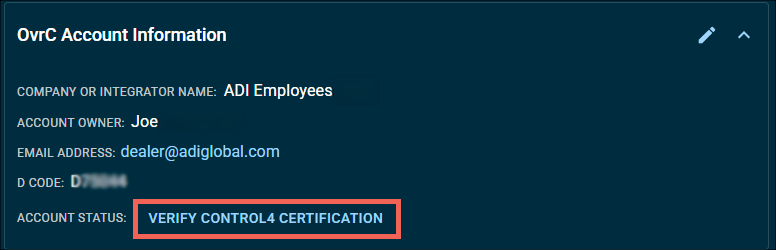
Go to Account > Overview > Control4 Certified and click VERIFY CONTROL4 CERTIFICATION.
-
Enter your my.control4.com credentials.
Register the primary Control4 controller
Once your dealer account is verified, follow the steps below to register a controller in OvrC.
-
Select a Customer, then the DEVICES tab.

-
If there's an OvrC Pro Hub on-site, click the SCAN button to automatically claim the newly added controller.
Note: By default, OvrC scans the network hourly, so the device may already be claimed and listed. Click here to learn more about Auto-claiming.
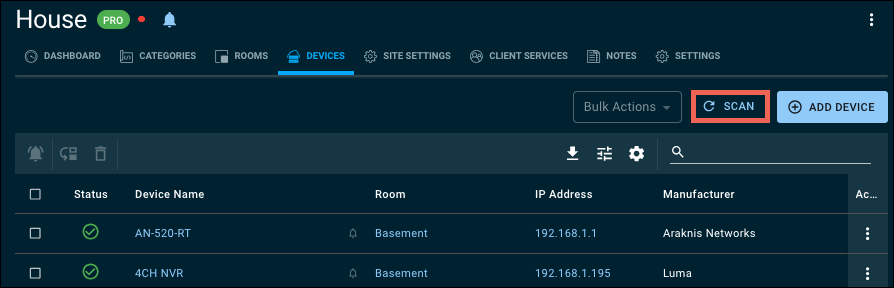
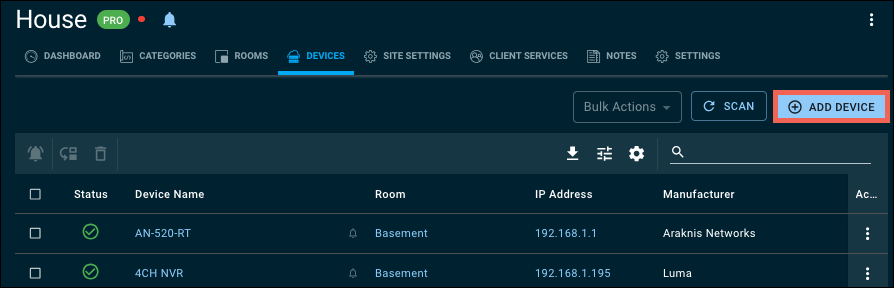
If there is not an OvrC Pro Hub on-site, click + ADD DEVICE to manually enter the MAC address, then press the controller's ID button. Alternatively, you can enter the Serial number.
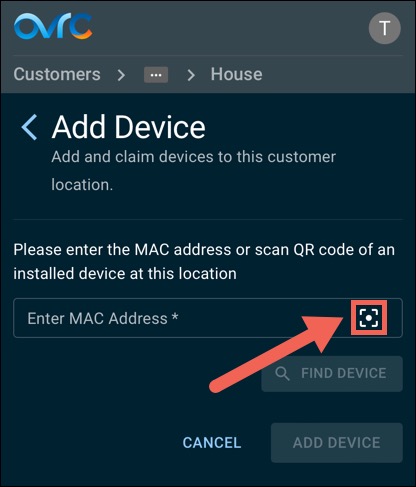
If you're using a mobile device, tap the Scan button to add the device using a QR code. You may need to allow OvrC to access your mobile device's camera.
-
Click CATEGORIES.
-
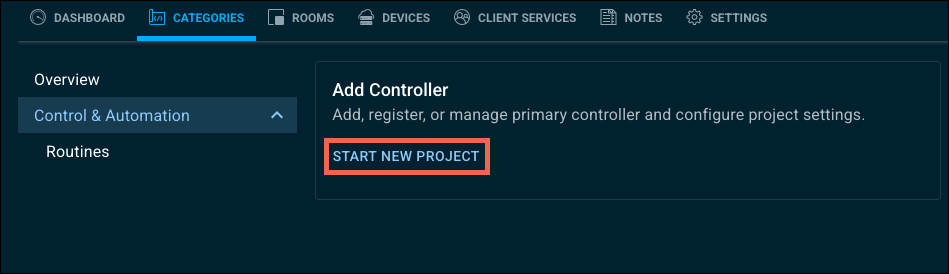
Click START NEW PROJECT.
-
Click Control4 Project.
-
Select a controller to act as the primary controller. There can be only one primary controller per OvrC Location.
-
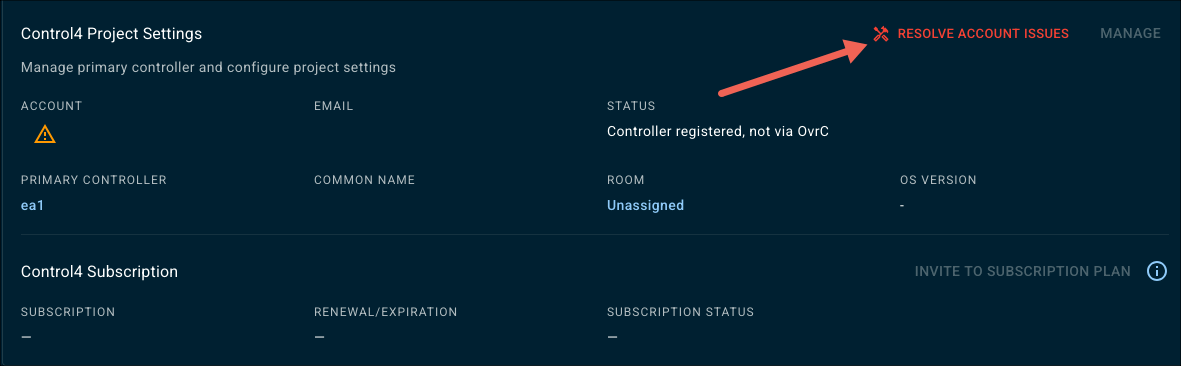
Click Set up and Register. If you see a red tool icon, there's an account issue. Click the icon to learn how to resolve the issue.
Perform updates
The Control4 system must be on the latest OS supported by the project before you can hand it off to the customer.
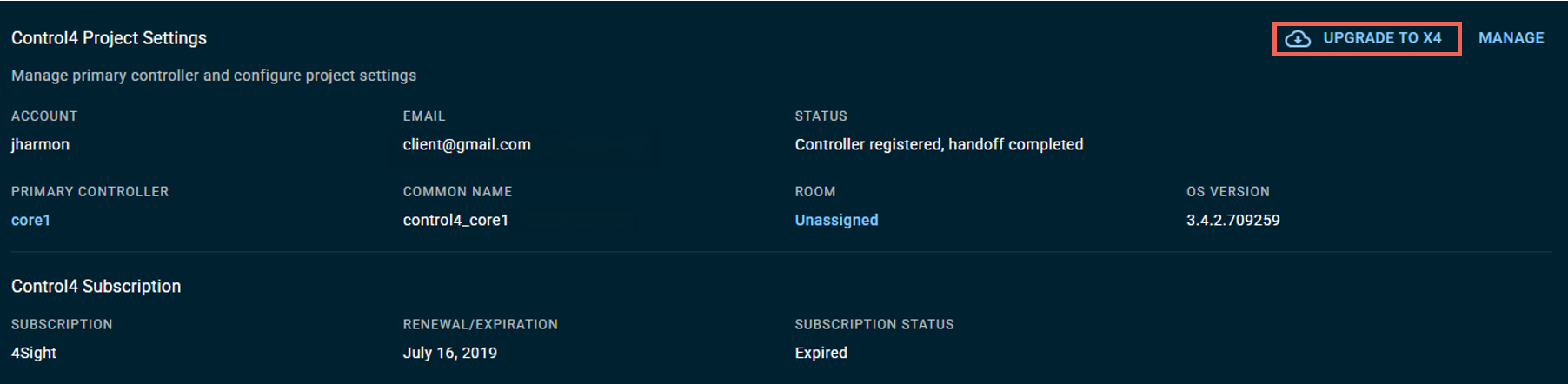
Note: The system must be on X4 to hand off to a customer.
Test the system
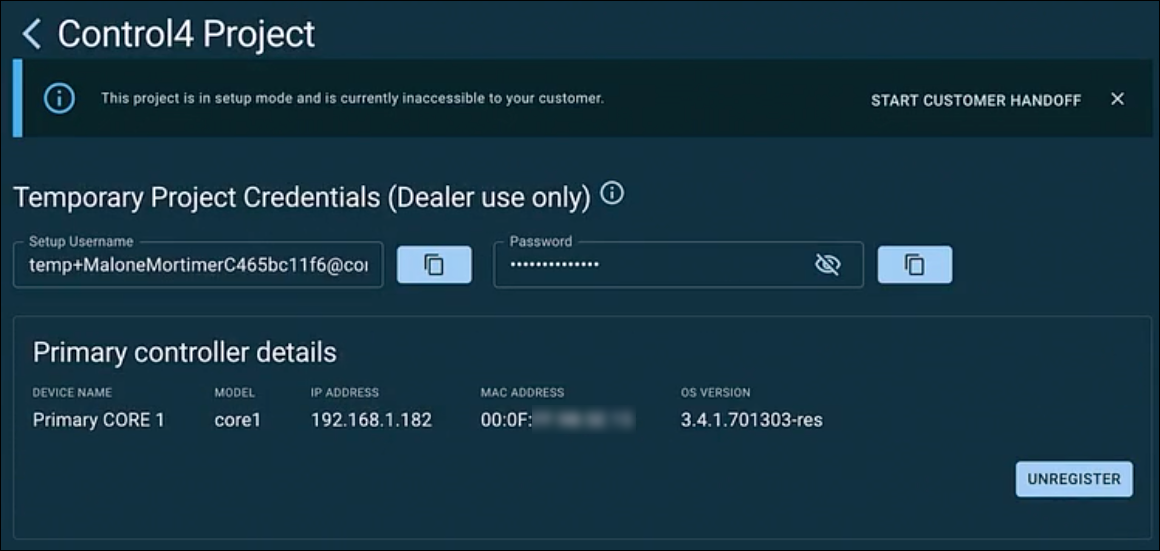
Temporary credentials are made available on the CATEGORIES tab for testing with the Control4 mobile app prior to handing the system to the customer. These credentials refresh every seven days.
What can I test with temporary credentials?
You can test Control4-only features with temporary credentials. Notifications, intercom on mobile, remote access, voice, Apple HomeKit, and Routines cannot be tested.
Note: You can test Apple Music and AirPlay.
Once you've tested the system. It's time to hand it off to the customer.