Handing off a Control4 System
You can only hand off a Control4 system if the OS is on the version before the current release, or OS 3.4.3 if there are end-of-support devices installed. OvrC provides a system check on the Categories tab so you can verify the maximum OS and your upgrade paths.
Note: OvrC allows any project outside the United States to be handed-off on OS 3.4.3.
The HC-250 and older are OS 2 systems, which become end-of-life on November 1, 2026. That includes the cloud services and system registration. Migrate these projects to a controller that is OS 3 capable.
Caution: If the primary controller is an HC-800 or older, you cannot hand the project off in OvrC. Do not register the system using OvrC. Contact support if you've started the registration process with an HC-800 or older.
Checking if the system has end-of-support devices
In OvrC, go to the Customer Location > Categories > Control & Automation > Configuration and click Calculate. This runs a check on all of the drivers and devices listed in the project, so it may take some time.

When the check completes, it displays any end-of-support devices, the maximum OS version that supports those devices, and how to update to that OS. One end-of-support device restricts the OS. If you add or remove a device, there's a Recalculate button to run the check again.
Note: T3 touch panels and Gen 1 and 2 lighting have a maximum OS of 4.0.0. You can hand off these systems at OS 3.4.3. You're not required to update the system to a later version.
Which remote access subscription does the OS support?
If the system is on OS 4+, it supports Connect and the X4 mobile app.
If the system is staying at OS 3.4.3, it supports 4Sight and the OS 3 mobile app.
Updating the Control4 system
Both OvrC and Composer Pro can update systems. If you want to update to the latest OS version, OvrC is the best option. If you want to update to a specific OS version, use Composer Pro. Neither tool allows you to update to an OS version that an installed device does not support.
Troubleshooting

The device is likely end-of-life and the maximum OS is 3.4.3. Update the project to OS 3.4.3, or use the Calculate feature to see how many end-of-life devices are in the project so you can replace them with devices that support X4.
There's a device installed that does not support the target OS. Run the Calculate feature in OvrC to see a list of unsupported devices.
The HC-800's maximum OS is 3.3.0, which does not support OvrC registration and hand-off. There is no plan to add this feature. Contact support if you're stuck in the process.
Handing off the project to the customer
Go to CATEGORIES > Control & Automation and click START CUSTOMER HANDOFF to send the customer an invitation to download the Control4 mobile app.
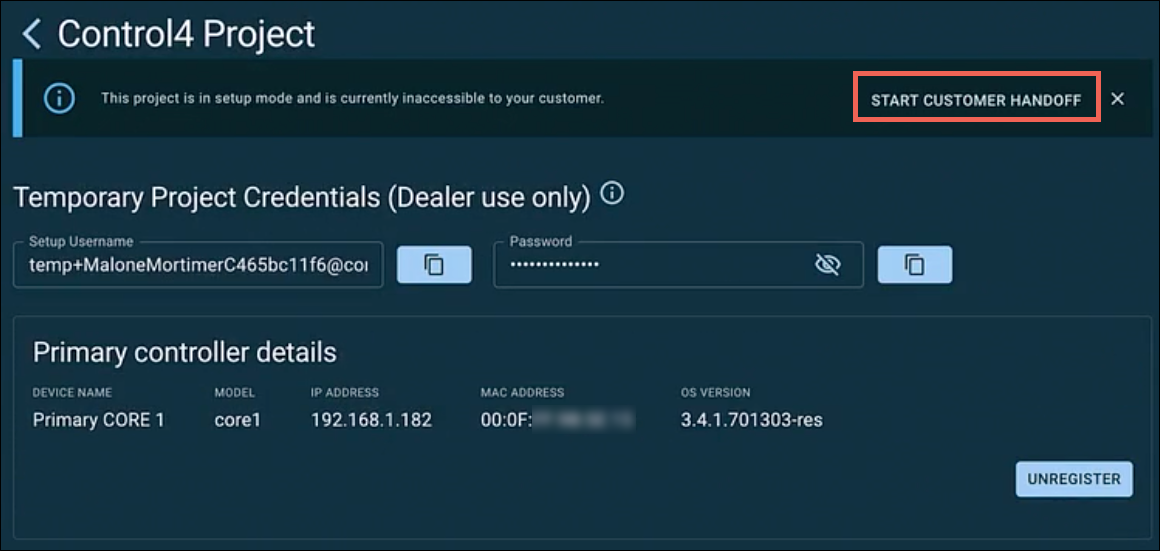
The customer signs in to the Control4 mobile app using their customer.control4.com username and password. Their first-time-user-experience changes depending on their current subscription status. Click here to see each scenario.
Note: There are different mobile apps for OS 3 and X4.