Power Insights Dashboard
The Power tab opens the Power Insights dashboard, which presents a picture of the electrical behavior of the system. Instead of guessing why a device shut down—whether the location had a power fluctuation, or the equipment is running hot—the dashboard gives you the data to investigate.
Use Power Insights during installation to confirm everything works as expected, after installation to support customers, and whenever you need to diagnose a problem to avoid rolling a truck.
Support is limited for mobile devices. We recommend using a desktop due to the high data requirements for Power Insights.
How Power Insights collects & updates data
Every PDU samples voltage, current, and power multiple times per second. The PDU summarizes these readings each minute and uploads it to the cloud, then uploads these summaries to OvrC every quarter hour (based on universal time).
The Power Insights Dashboard displays these uploads.
-
The graphs show real, meaningful data.
-
Short blips may appear smoothed out, but any issue lasting longer than a minute will be visible.
-
Every chart in the dashboard always uses the same time window and the same 15-minute reporting cadence.
-
The graph is not real time, but displays data up to the most recent complete quarter hour.
This design keeps the dashboard fast, accurate, and scalable while giving you everything you need for troubleshooting.
Using the dashboard
Time range selector
Whenever you change the time range (for example: last 24 hours, last 7 days), every graph updates to match that same range. This keeps power, voltage, outlet status, temperature, UPS behavior, and uptime all aligned.
Interaction: Hover, zoom, add/remove lines
The interface has the following features:
-
Hover over a line to see the exact value.
-
Use the mouse wheel or click and drag a selector box to zoom into any area you want to inspect closely.
-
Toggle minimum/maximum lines.
-
Toggle metrics for individual outlets.
These features make it easy to follow a problem to its cause.
Power (at the device level)
The Power tab shows inlet power: the actual electricity supplied to the WattBox from the grid (or UPS). This is not a sum of outlet power; it’s the actual source power, including:
-
Voltage
-
Amperage
-
Wattage
By default, the graphs show average values, but you can add minimum and maximum if you want deeper insight into instability. The minimum and maximum lines show data from the samples, and may be much higher or lower than the minute-long average.
Voltage
Voltage tells you how stable the customer’s power circuit is. It’s often the fastest way to spot problems that have nothing to do with the gear you installed.
Normal voltage runs between 110–125V (220–240V outside North America). Small wiggles are normal.
Voltage dips (sags) can cause devices to shut down or reboot. Common causes include:
-
HVAC, large appliances, or devices with a high initial draw starting up
-
Overloaded branch circuits
-
Poor wiring (loose connections, corroded wire, etc.)
-
Utility brownouts
-
Old homes with shared circuits
Voltage falling below 108V usually lines up with customer complaints like:
-
“My TV shut off randomly.”
-
“The AVR rebooted,”
-
“Everything flickered for a second,”
If this is the case for the site, next check the following:
-
Do multiple WattBoxes at the site dip at the same time?
-
Does the dip line up with a outlet power dropping?
-
Should this equipment move to a different circuit?
-
Would this WattBox be best served by a UPS?
Spikes often point to utility switching or surge conditions.
If voltage flatlines at 0V, this indicates the WattBox lost incoming power, rebooted, or could not report to OvrC.
Amperage
Amperage shows how much current the whole system is drawing from the wall.
Under normal use, current rises during use and drops during idle periods.
A dip in amps usually means a device powered off or rebooted. If the amps drop suddenly without voltage dropping, a device likely shut down.
Spikes typically indicate:
-
Inrush from displays, projectors, or amplifiers as they power up
-
High audio load
-
A power supply struggling or failing
Note: Repeated current spikes when the system is idle can be an early warning sign that a device is failing and about to trigger service calls.
Wattage
Wattage is the most helpful system-wide metric because it reflects real electrical load.
A dip in wattage tells you something turned off. If the whole system dips at once, it’s usually a circuit or power issue. If only part of the system dips, outlet-level graphs can show which device is responsible.
Spikes often come from:
-
Audio peaks
-
Display warm-up
-
High-draw equipment waking unexpectedly
Flatlines (zero watts) for an extended period almost always means the WattBox lost power or shut down.
Outlets (power, amperage, and status per outlet)
If one component is causing trouble—rebooting, shutting off, overheating, or pulling odd loads—this is where you’ll see it.
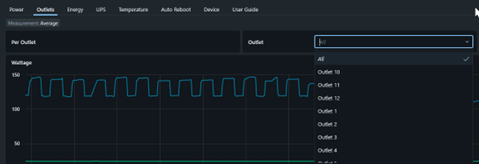
Per-outlet power and amperage
Each outlet has:
-
Wattage
-
Amperage
-
Filters for average, minimum, maximum
You can compare outlets against each other or against system-wide inlet metrics.
Scenario example
If one outlet repeatedly drops to zero watts while the rest of the system stays stable, this could indicate:
-
A failing amplifier
-
A streaming device constantly rebooting
-
A loose power connection
-
A device overheating and shutting itself down
Outlet status history
The status graph shows a simple on/off line for each outlet (1 = on, 0 = off).
WattBox only logs the change if the outlet stays in its new state long enough to be captured in one of the 60-second samples (that is, 30s or longer).
Scenario example
If multiple outlets drop at the same time, that usually means:
-
A circuit-level event (power loss, dip, or breaker flicker)
-
Automation toggled more outlets than expected
What to check next:
-
Did voltage dip at the same time?
-
Did the customer run a macro or scene?
-
Did the Watts or Amps graphs show corresponding drops?
Energy (kWh interval)
Energy in this dashboard is interval energy, not cumulative. Each point shows how much energy was used during that reporting window (that is, based on your window's zoom).
This graph is best for spotting long-term trends.
Use this to:
-
See power draw changes throughout the day
-
Identify devices that never enter standby
-
Compare energy usage before and after a configuration change
Scenario example
Occasional night-time spikes in energy while the system appears “off.”
Likely Causes:
-
Devices performing nightly updates
-
A device stuck in a wake cycle
-
Misconfigured control system routines
UPS metrics
If a UPS is connected, the dashboard adds six graphs covering battery status and power transitions.
This lets you confirm:
-
Whether outages actually occurred
-
How long the UPS supported the load
-
Whether the battery is aging
-
Whether runtime is shortening
Power lost
This shows transitions between line power to battery power. It does not identify the cause, only the state change.
Scenario example
A "power lost" event without a voltage dip on the graph could mean:
-
The UPS detected something too fast to appear on the inlet voltage graph
-
The UPS input plug may have been loose
-
The home experienced a flicker shorter than the dashboard’s smoothing window
Battery load & runtime
These help you see if the UPS is sized correctly. If runtime drops noticeably while load stays the same, the battery is aging and should be replaced before it fails during an outage.
Temperature
Temperature readings only appear when a WattBox Smart Adapter temperature probe is connected. If not, it displays “No Data”.
Two sensors are always displayed.
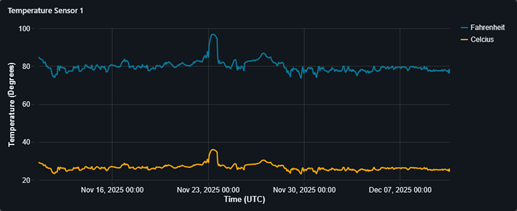
Temperature graphs can help identify several issues.
-
Slow climbs throughout the day may mean inadequate airflow, or components stacked too close together.
-
Temperature staying high overnight indicates ventilation problems.
-
Sudden spikes usually mean a high-heat component near the probe.
Auto reboot
This tab has two graphs:
-
Auto Reboot Enabled — shows the moments when the feature is turned on/off
-
Last Auto Reboot — shows when an auto reboot was actually triggered
These graphs show changes, not durations. In addition, that will not show reboot initated by teh device itself (for that, look at the per-outlet power use).
If you weren’t aware of auto reboots happening, this graph shows you exactly when they occurred, which is helpful for debugging automation routines or device instability.
Device uptime
Uptime resets only when the WattBox CPU reboots. It does not reset if OvrC temporarily loses connection.
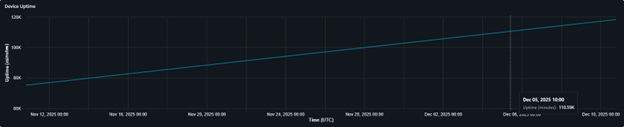
This is the quickest way to confirm whether the WattBox is rebooting due to:
-
Power issues
-
Firmware events
-
Customer interaction
-
Automation bugs
-
System instability
Troubleshooting examples
Scenario 1: TV shuts off randomly
Likely causes:
-
Voltage dips under load
-
Weak or overloaded circuit
-
TV entering protection mode
Check:
-
Device Voltage, look for dips below ~108 V (recommend a UPS if dips are frequent)
-
Outlet power
-
Outlet status
-
What to do:
Scenario 2: Equipment reboots overnight
Likely causes:
-
Scheduled automation
-
Power flicker
-
Thermal protection
Check:
-
Wattage dips
-
Auto reboot
-
Device uptime
-
UPS power post
Scenario 3: Amplifier cuts out during playback
Likely causes:
-
Amplifier hitting protection
-
Ventilation problems
-
Circuit overload
Check:
-
Per-outlet amperage
-
Temperature
-
Wattage
Scenario 4: High idle power usage
Likely causes:
-
Devices never entering standby
-
Misconfigured automation
-
Background processes or updates
Check:
-
Energy
-
Per-outlet wattage