Network Scan & Internet Test Settings
OvrC Pro can run speed tests and network scans to keep your system healthy. With OvrC Pro running on various devices, it’s likely you'll have multiple devices capable of running these OvrC Pro services.
In each Location's CATEGORIES tab under Remote Management > Configuration, choose which device should perform each service and how frequently. This gives you the freedom to customize these services for each installation.
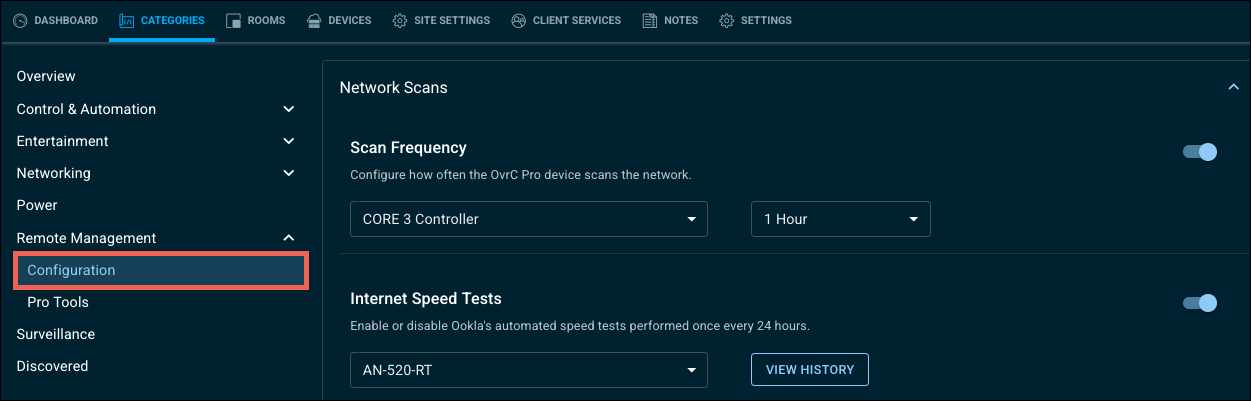
Network scanning
Network scans discover new devices connected to the network. The scan also checks for OvrC Pro integrations, like SNMP, ONVIF, and specific integrations on devices like TVs and AVRs.
Extending or disabling the frequency of network scan disrupts device discovery and third-party integration updates until another network scan is completed.
Which device should be used?
An OvrC-enabled router is the best option. It provides visibility across all VLANs.
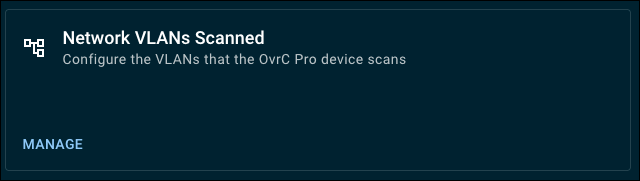
If you do not have an OvrC Pro router, use another OvrC Pro device and connect it to a trunk port of a managed switch. Preferably, your core network switch. This allows the OvrC Pro device to scan across any VLAN you've configured on the trunk port.
Click here for Araknis documentation to find help on VLAN configuration.
What frequency?
Use the default setting of 1 hour. Network scans have very little impact on network traffic. A shorter frequency provides the most accurate device details.
Internet testing
An internet speed test determines the amount of bandwidth that is available from the Internet Service Provider (ISP). There are many variables in play, and all of those combined result in fluctuations between speed tests. These include:
-
The device's available resources. Using a device that also manages other tasks like routing network traffic or maintaining wireless connections may not return the same results as a dedicated device like an OvrC Pro Hub.
-
The server used. Different speed test servers return different results. OvrC chooses the speed test server with the fastest response time. This is typically the ISP's server.
How do speed tests work?
A speed test server provides a standard 1 GB file to download and upload. The test measures the time it takes to download the file, then to upload it again.
This is why you may see an OvrC Pro device using larger amounts of data than expected. If it's running frequent speed tests, it's sending and receiving 1 GB of data each time.
Which device should be used?
Select the device with the least number of tasks to provide the internet testing. Typically, the router is busy managing network traffic, so using a standalone OvrC Pro Hub or Control4 controller will likely give more consistent results. If the location has multiple controllers and/or a hub, select the device closest to the modem. Remember, you don’t have to run this command on a C4 controller.
If you do not have an OvrC Pro-enabled router, you can connect a different OvrC Pro device to a switch or router port and manually add VLANs to scan.
What should my Scan Frequency be?
Unless you have a strong need to monitor data speeds, we recommend daily tests to minimize the impact of the customer's internet use.