Device Relationships
Device Relationships provide logical power and network connections across supported Araknis, Pakedge, and WattBox devices. These relationships track and display Powered by and Connected to connections. This provides an accurate site map based on the site topology and faster issue resolution.
Troubleshooting benefits
Device Relationships let you monitor the parent devices (the device providing a power or network connection)and restart the child device from it's Device Details page, instead of having to navigate to the switch or WattBox page.

Navigation benefits
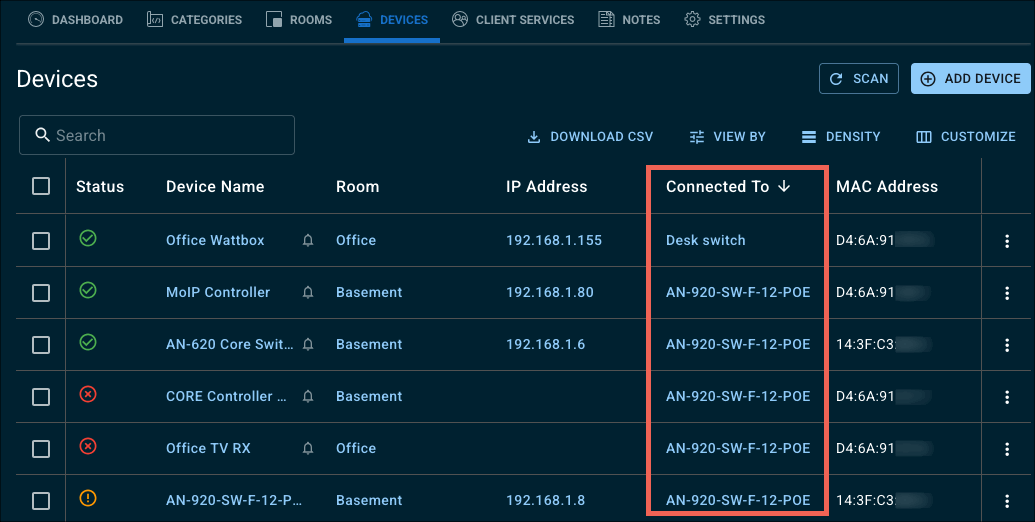
Click the Connected To or Powered By column in the Device List to group devices by their network connections.
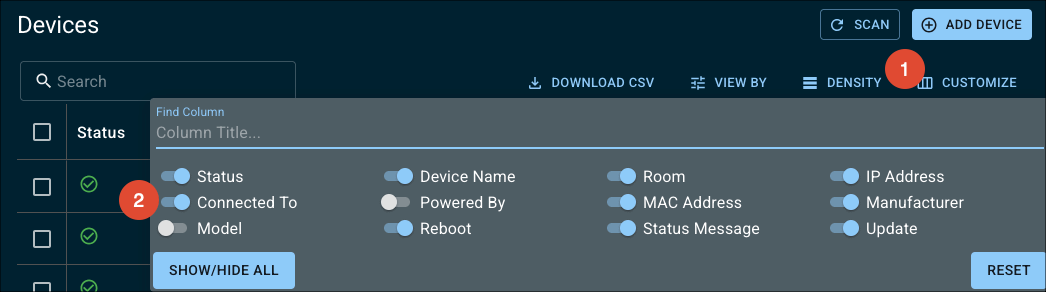
Note: The Conntected To and Powered By columns are hidden by default. To add it, click Customize > Connected To/Powered By.
Supported devices
Click each brand name to see its supported devices:

- x20 series switches and routers
- x10 series switches and routers
-
MS series switches
-
WR-1 routers
-
RK-1 routers
-
RT-3100 routers
-
900 series
-
820 series
-
800 series
-
700 series
-
300 series
-
250/150 series
Creating Device Relationships
You can create Device Relationships from the parent or child device on their Device Details page.
Pro Tip: If the site has an OvrC Pro device claimed to it, use the Scan feature to make the identification process easier.
Creating Device Relationships on the parent device
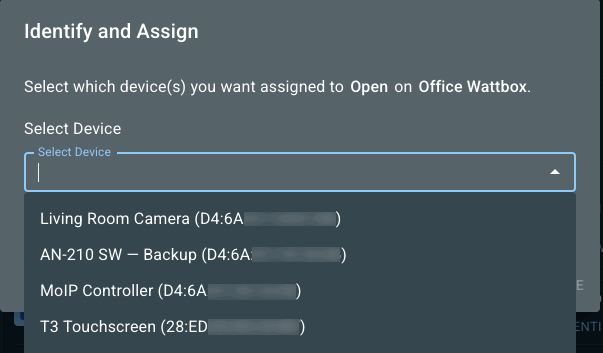
The fastest way to create Device Relationships site-wide is to identify the switchports/outlets on your supported networking and power devices. Click Identify on each port to select the connected device.
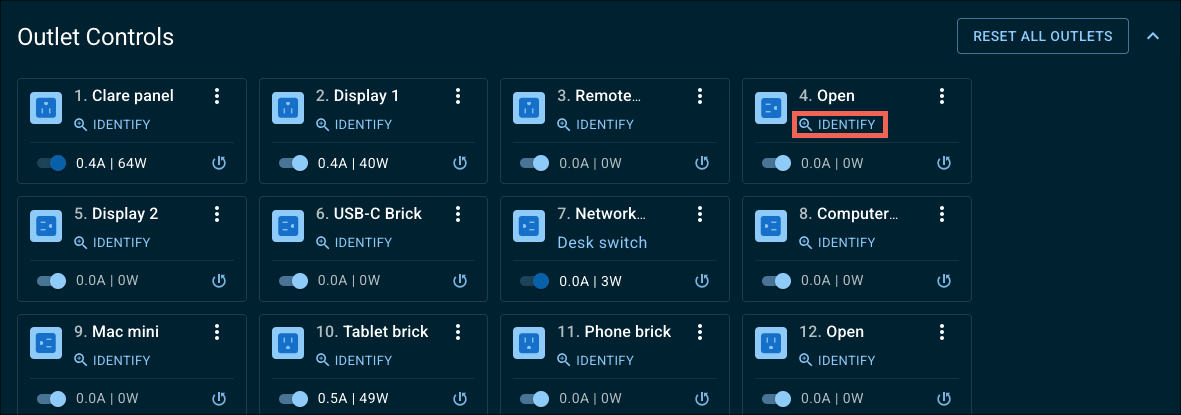
Use the type-ahead feature to search for a device.
Creating Device Relationships on the child device
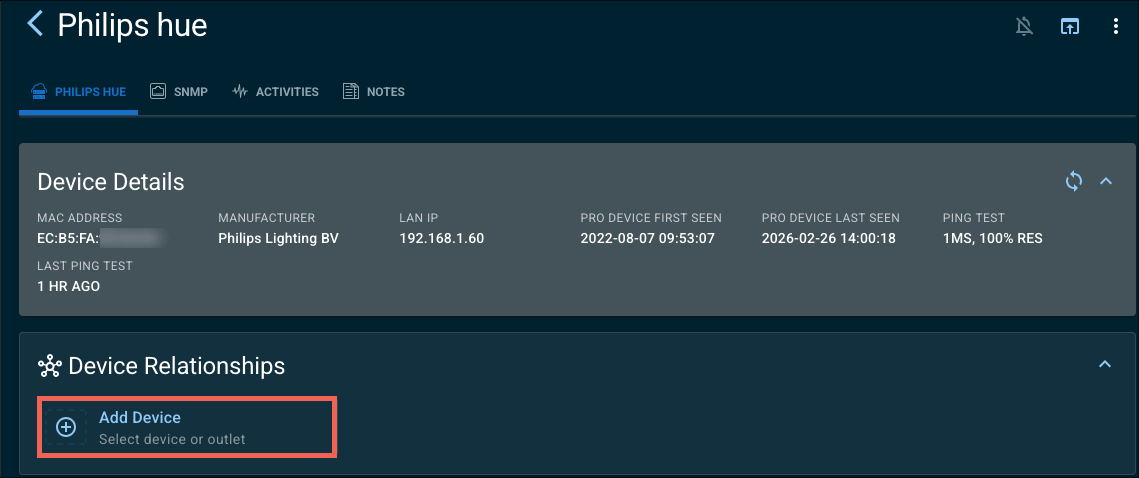
Click Add Device, under Parent Devices.
Note: Network Device Relationships are automatically created for devices connected to Araknis x20 series switches. Click here to learn more.
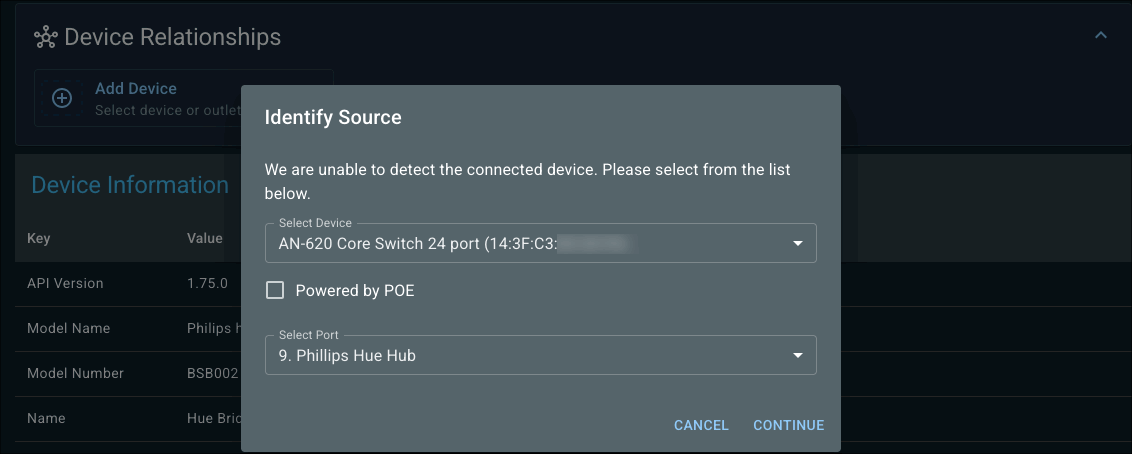
Select the network or power device to create a relationship with. Use the type-ahead feature to search for a device.
Select the switchport or outlet the device is connected to. If it's a switchport, select if the switch is providing PoE power or not.
Click Continue to save the Device Relationship.
Defining the network topology with Device Relationships
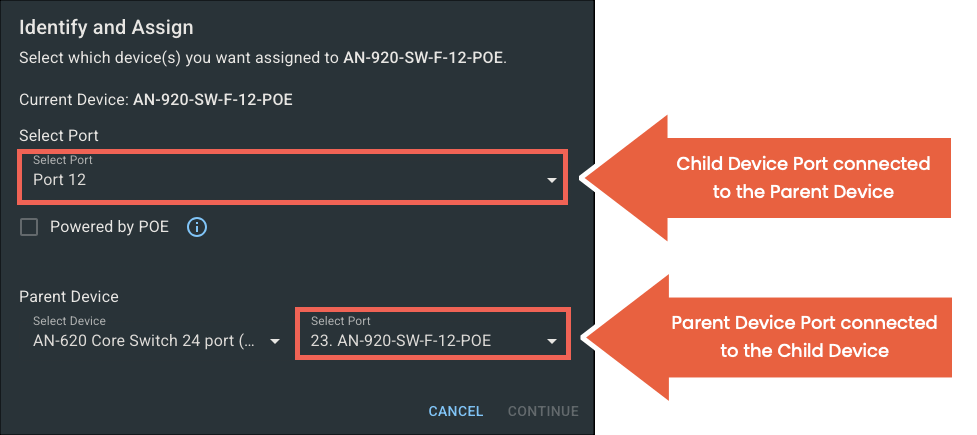
If you select a network switch as a Parent Device, you're asked to select the Port you're connected to on the Parent Device as well as the Port on the Child Device that's connected to the Parent.
Click Continue to save the configuration.
Pro Tip: Define the relationships from the Parent Device(s) first, then work your way down the topology.