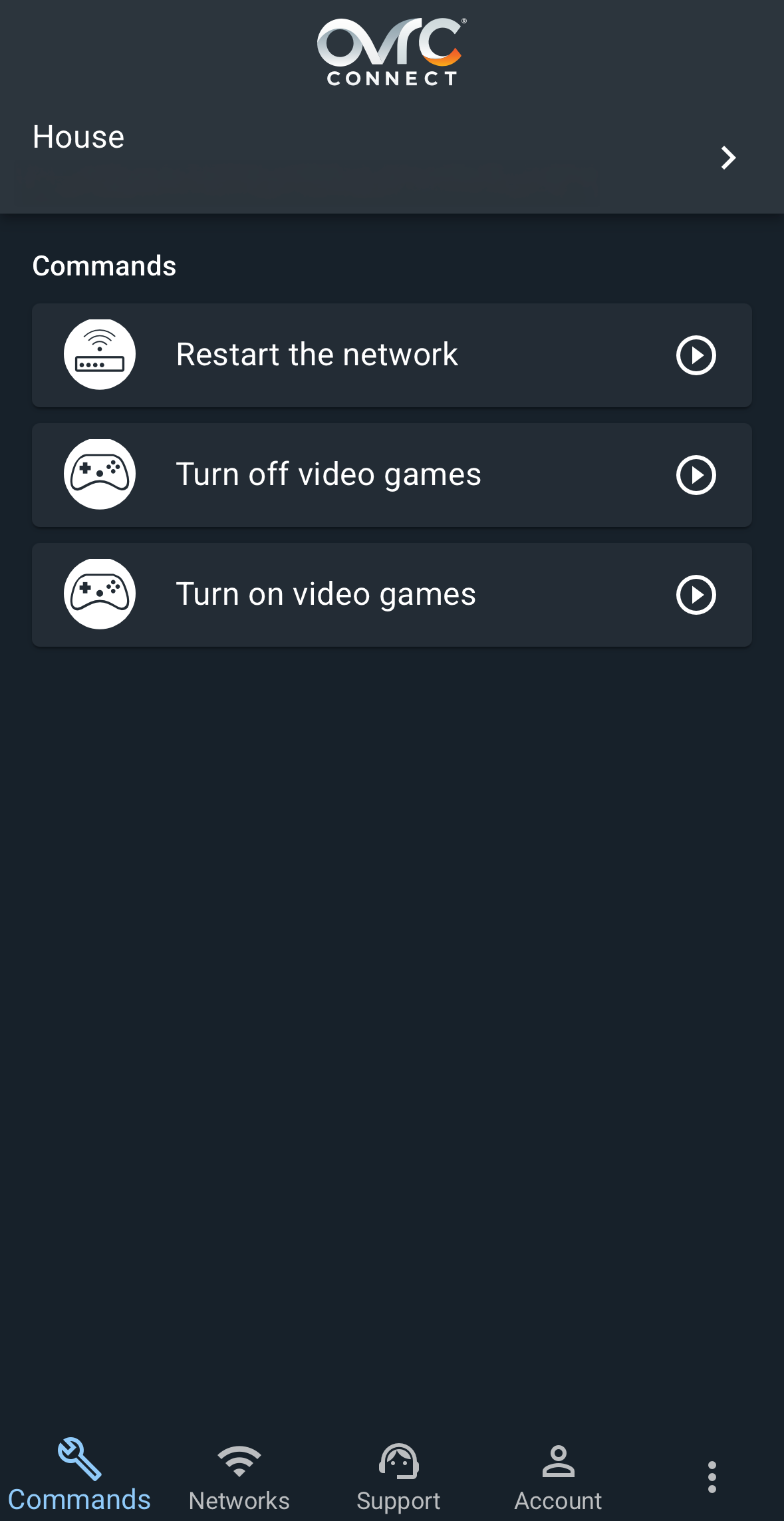
Create OvrC Connect Commands
By creating custom commands in OvrC Connect, your customers can fix small problems instantly on their own. Giving you one less service call.
Creating an OvrC Connect command requires that you have already claimed the location's devices in OvrC. Click here to learn how.
Create the command
-
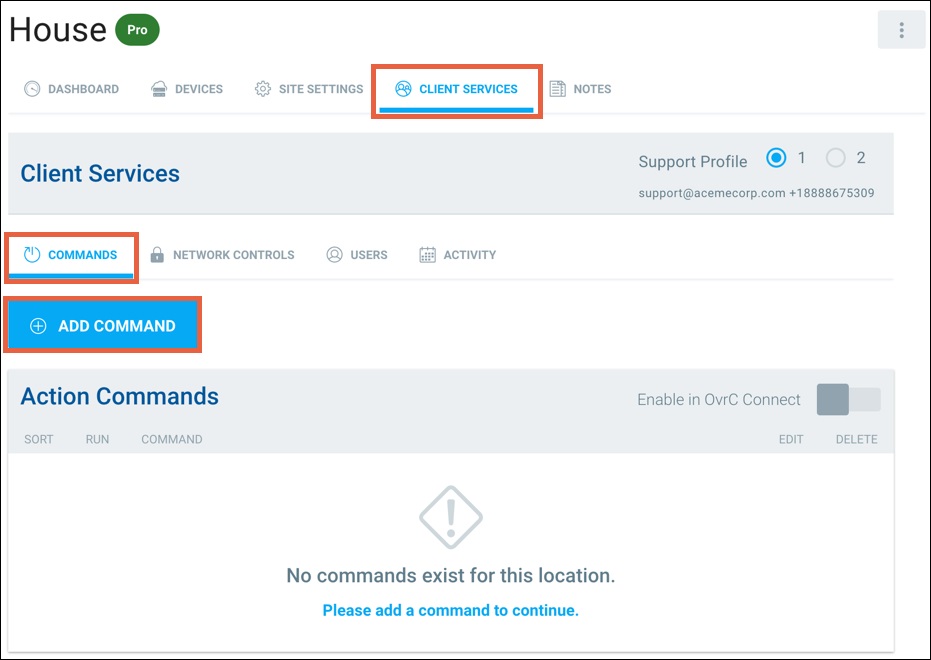
On a customer's site, go to the CLIENT SERVICES page. Under the COMMANDS tab, click + ADD COMMAND.
-
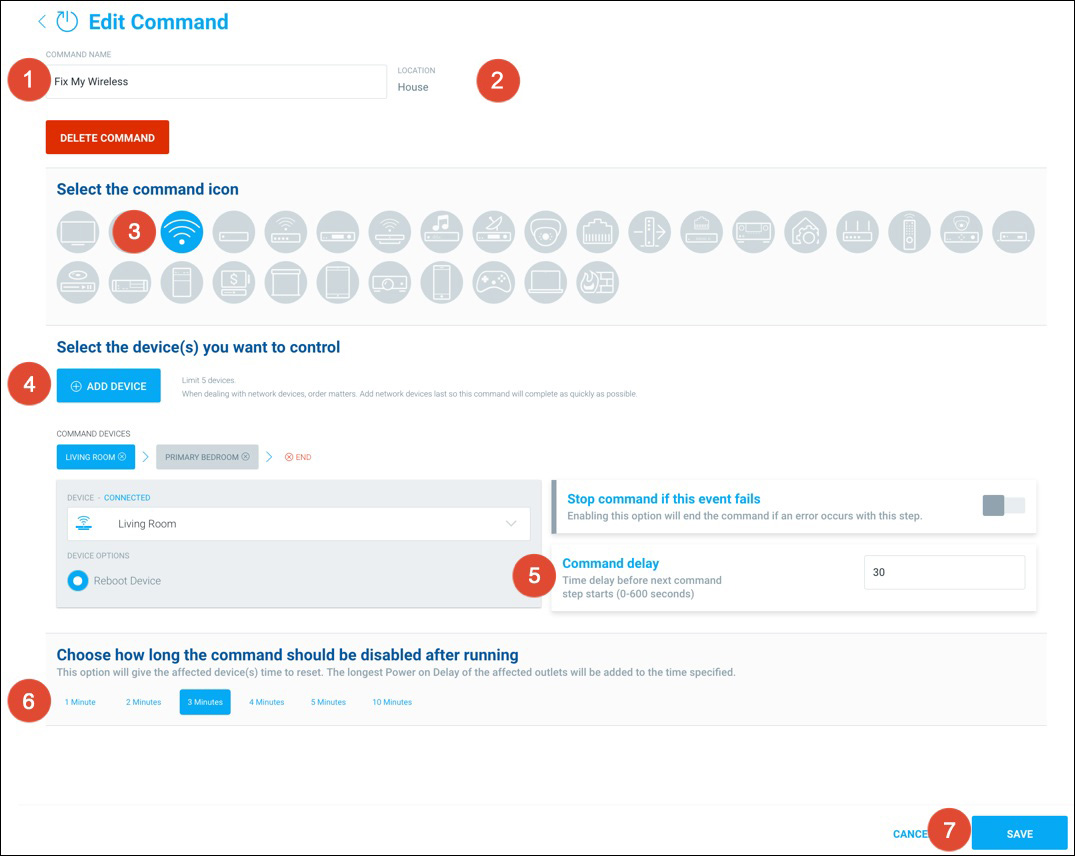
Give the command an easily understood name. A name like "Fix My Wireless" means a lot more to your customer than the technically accurate "AN-810 Power Cycle".
-
Ensure you've selected the correct location for the command.
-
Select an icon that best matches the concept of the command.
-
Select the device(s) to control. Up to 5 devices can be controlled by a single command.
-
Set a command delay as needed to give each device time to complete its command (for example, to give a device time to finish booting before trying to connect to it). Select whether the command should stop executing if that event fails.
-
Choose how long the command should be disabled after being given. This prevents the customer from restarting the command before it's had a chance to complete its normal operations. Select a duration that covers all delays and device actions, and then some. For example, if it takes 1 minute for an access point to reboot, choose a delay of 2 or 3 minutes.
-
Click SAVE to complete the command.
Validate and activate
The newly created command appears under the Action Commands table.
Click the icon to ensure your command works as intended. If it works as intended, click the Enable in OvrC Connect toggle to make the command available in the customer's OvrC Connect app.