Network Controls
Network Controls lets you and your customer limit Wi-Fi access and network content. Use cases include:
-
Limiting a child's time online
-
Disrupting connectivity for a third-party wireless camera
These features are only available for OvrC-enabled access points and routers.
Note: These settings only work for Wi-Fi devices scanned by OvrC Pro. Wired or cellular connections can still be made.
Creating a Wireless Device Profile
-
Select the OvrC Customer and Location.
-
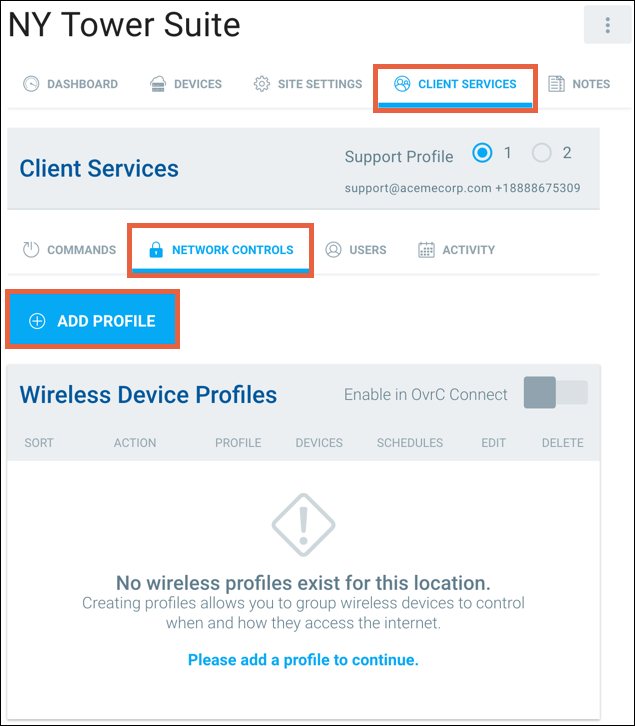
Navigate to CLIENT SERVICES > NETWORK CONTROLS and click + ADD PROFILE.
-
Enter a Profile Name. This is typically the name of someone in the household.
-
The Associated Devices table shows all the client devices OvrC Pro has scanned. Select the devices that belong to the individual you named the Profile for.
-
Click SAVE.

Schedules
Schedules are commonly used to block out time for homework, sleep, or dinner. Or to schedule when indoor wireless cameras should connect to the network.
Note: This only disconnects devices from Wi-Fi. Wired or cellular connections can still be made.
To configure a Schedule:
-
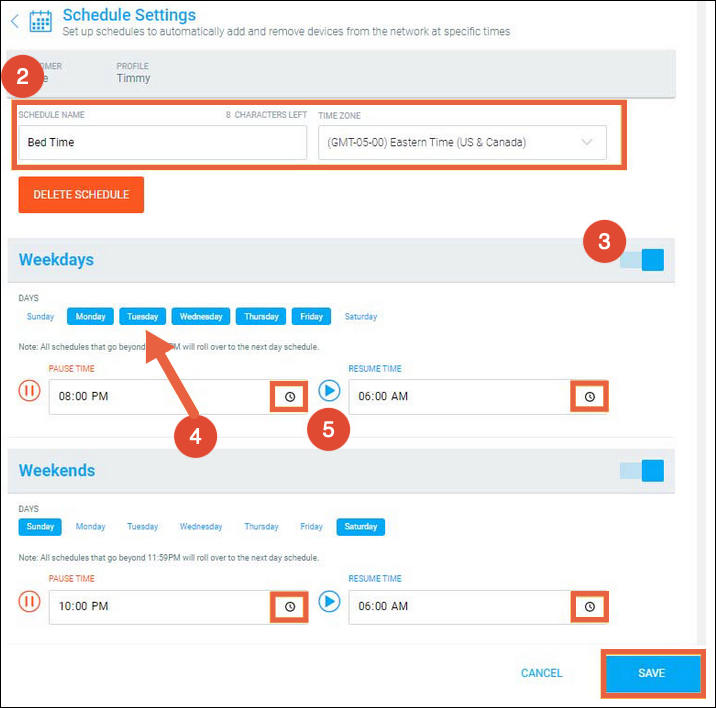
Click the + ADD SCHEDULE button.
-
Enter a Schedule Name and make sure the correct Time Zone is selected.
-
Weekdays and Weekends have separate toggle buttons to enable or disable these time periods independently.
-
Select the individual Days you'd like the schedule applied to.
-
Enter a PAUSE and RESUME TIME. You can type or click the clock icon to select the time.
-
Click SAVE.
Pausing Profiles
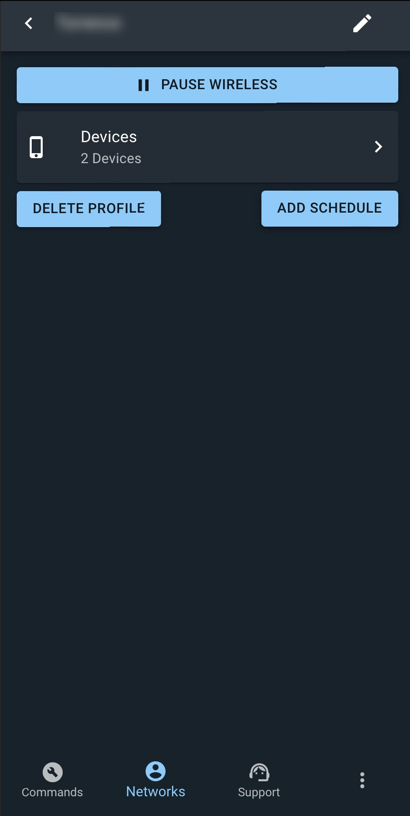
Profiles can be manually paused in OvrC and in the OvrC Connect app.
Network Settings
Click Content Filtering & Network Security Settings to select the network security and what content to filter out on the network. Complete descriptions of each level are detailed on the page.
Note: Enabling this feature changes the DNS servers of the router.
Toggle Enable in OvrC Connect on if the customer wants control over these settings.
This setting is also configurable under CATEGORIES > Networking > Configuration.

Caution: These settings are global and affect every user on the network.