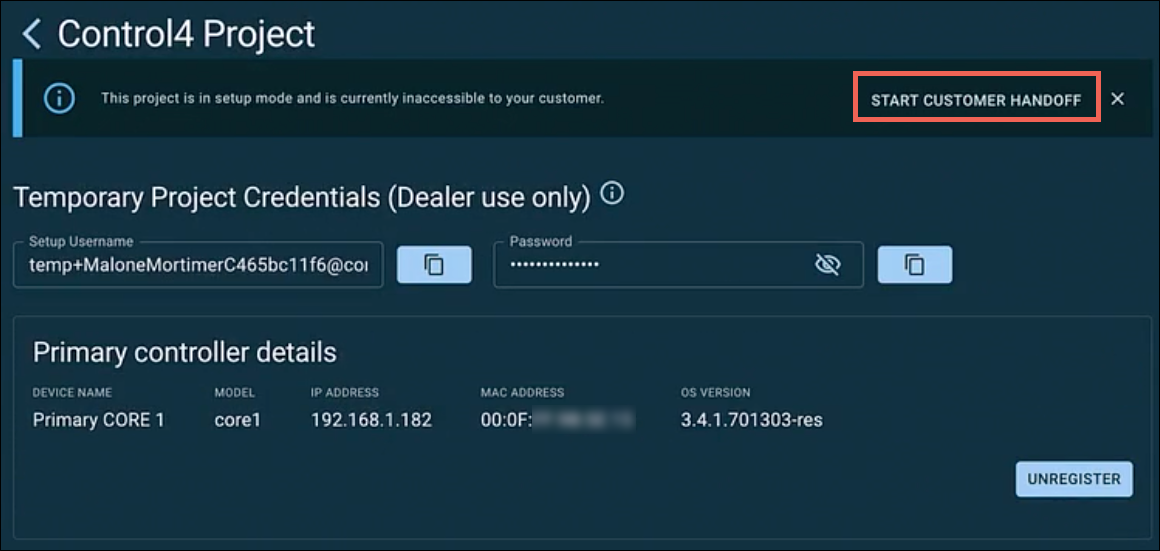
How to hand-off a Control4 Customer in OvrC
Follow these instructions to hand-off a Control4 system to a customer. If you haven't registered the Control4 system in OvrC, read How to register a C4 Controller in OvrC.
Verifying the Customer's information before Hand-Off
Follow the steps below to verify the customer’s information is accurate in OvrC.
-
Click List on the left-side menu, then select the Customer.
-
Review the customer’s information for accuracy.
If the customer’s physical address is inaccurate, click the three dots in the upper, right-hand corner of the page and click Edit Location.
If the customer’s name, phone number, or email address is inaccurate, click the three dots in the upper, right-hand corner of the page and click Edit Customer.
-
Saveyour changes.
Handing Off the Project to the Customer
-
Verify you're looking at the correct Customer Location in OvrC.
-
Click the Settings tab and go to Manage Access.
-
Click Invite User to enter the customer's Email Address and Phone Number. Then select which applications to invite them to.
-
Select Control4 then click Select Plans.
-
Select the service plan you have discussed with the Customer, then click Send Invite.
The customer receives an email from Control4 with a one-time use passcode to log into their Control4 account. The invitation expires in three days. Afterward, a new invite must be sent.
The handoff timing may vary depending upon the particular project. We recommend that Partners define the terms and conditions of their handoff timing in their agreement with the customer (e.g. if payment in full is required before a project handoff).
Customer actions
The remainder of the customer hand-off process is completed within the Control4 mobile app.
-
The customer opens their invite email and taps the link to download the Control4 mobile app.
-
They open the app and click Register.
-
Have the customer go back to the invitation email and tap Click here, under the mobile app download icons, to automatically populate their invitation code and email address.
-
The customer reviews and agrees to the Control4 Terms & Privacy Policy.
-
The customer creates their account by entering the one-time use passcode, their email address, and a new password.
-
The customer reviews, confirms, or edits their information.
-
The customer chooses if they'd like to use X4 or X4 with Connect..
-
The customer reviews their selected plan summary. If they choose a Connect subscription, they have to enter their credit card information.
-
The customer completes the registration process and taps or clicks Learn Control4.
-
After registration, the customer is presented with the option to learn more about their system, or they can tap Get Started to skip the Knowledge Hub and go to their home screen.