Upgrading from OS 3 to X4
You or your customer can initiate an X4 upgrade. We've outlined pre-requisites and both scenarios. Including options based on the customer's current subscription.
Pre-requisites
-
The Control4 controller must be running OS 3.4.2 or higher. OvrC requires you to upgrade to X4 before customer handoff. Click here to learn more about OS version upgrade compatibility and the Device Image Updater.
-
Your OvrC account must use the same my.control4.com account that the customer is registered under.
-
The controller must be claimed in OvrC.
-
If the customer's email is being used in another OvrC Location, you must use a new email address to upgrade the account to Control4 Connect.
-
You must link your my.control4.com account to OvrC. Read How to register a Control4 Controller in OvrC for instructions.
Note: Screenshots in this document show USD pricing. The X4 mobile app displays local currency where it is supported.
Initiating the upgrade
X4 upgrades are initiated one of two ways:
Customer-initiated upgrade
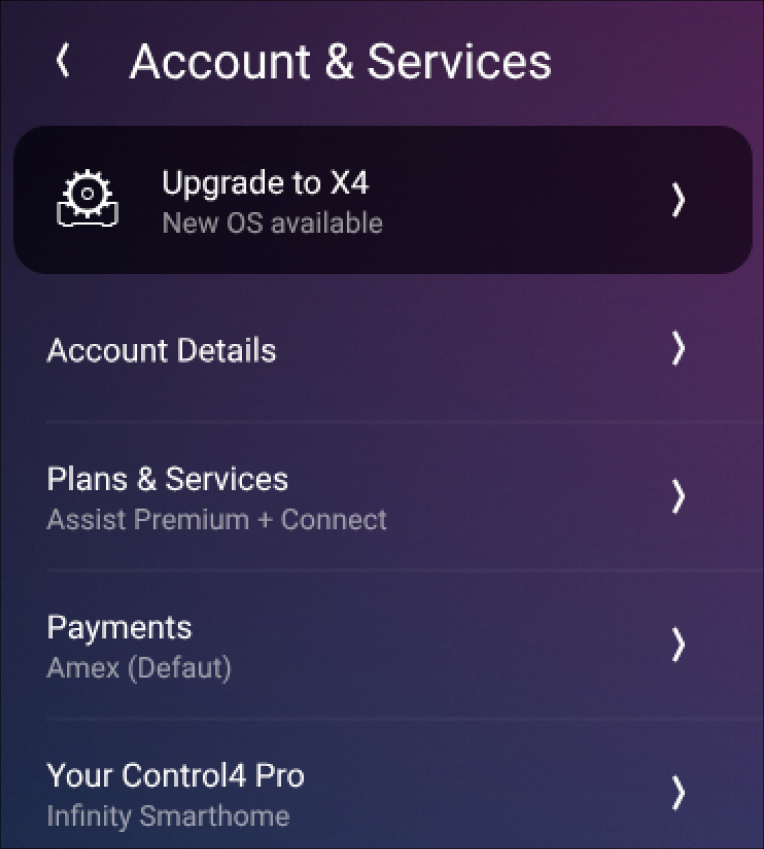
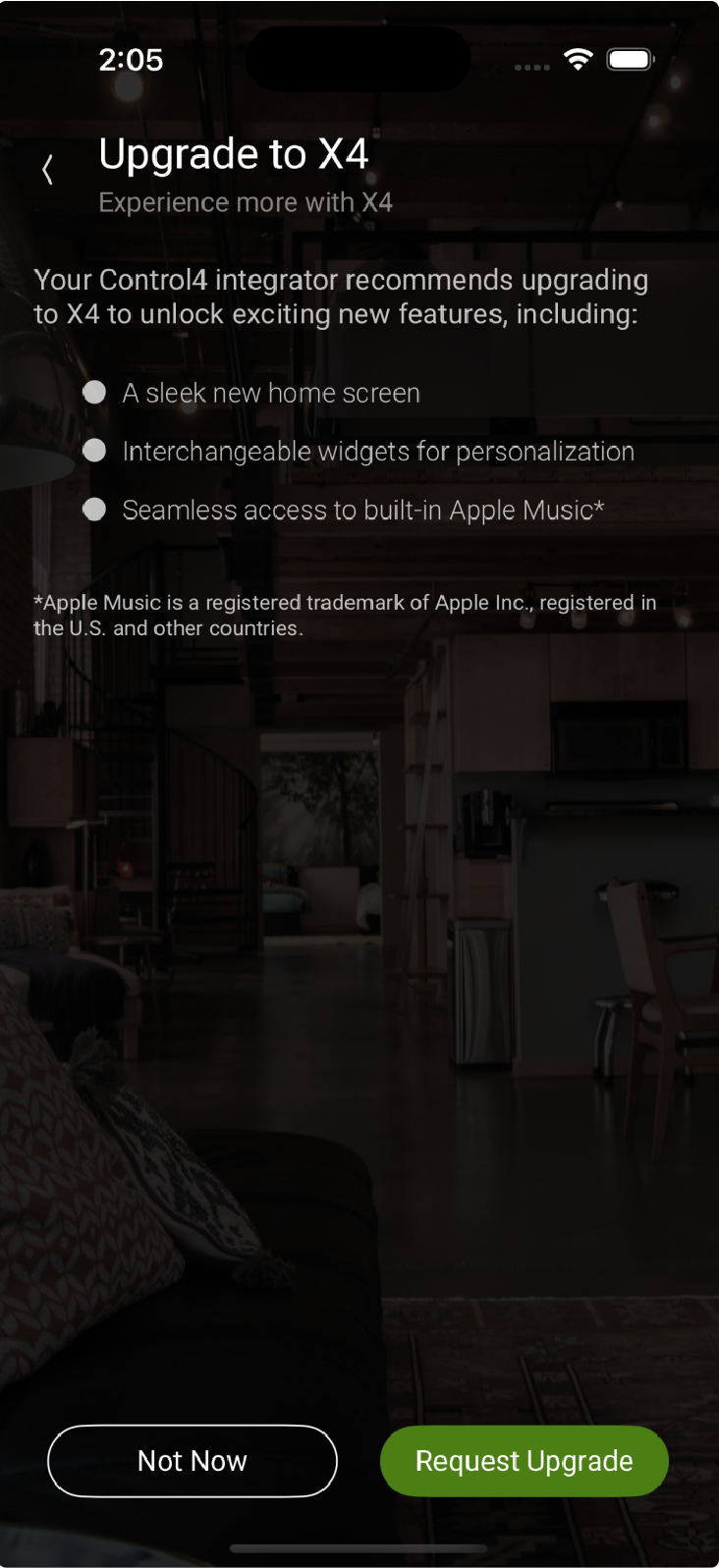
Your customers can ask to upgrade in the Control4 mobile app under Settings & Services > Settings > Account & Services.
Dealer-initiated upgrade
-
Verify the controller is registered in customer.control4.com.
-
If it isn't already, claim the controller in the customer's OvrC Location.
-
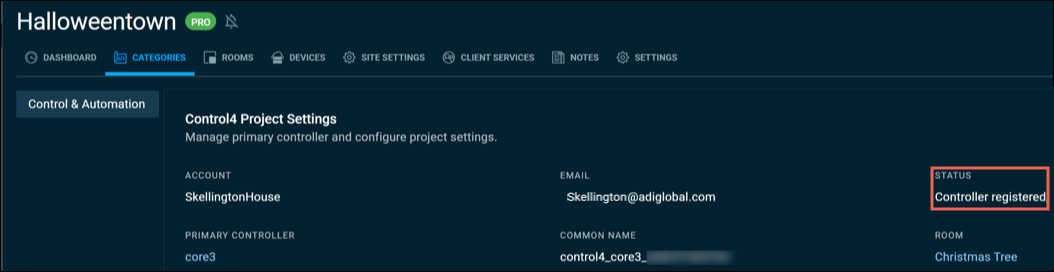
Navigate to the CATEGORIES tab > Control & Automation tab and verify the STATUS says "Controller registered." If it's grayed out, read Troubleshooting Control4 Connect registration issues for help.
-
Click the INVITE CUSTOMER TO X4.
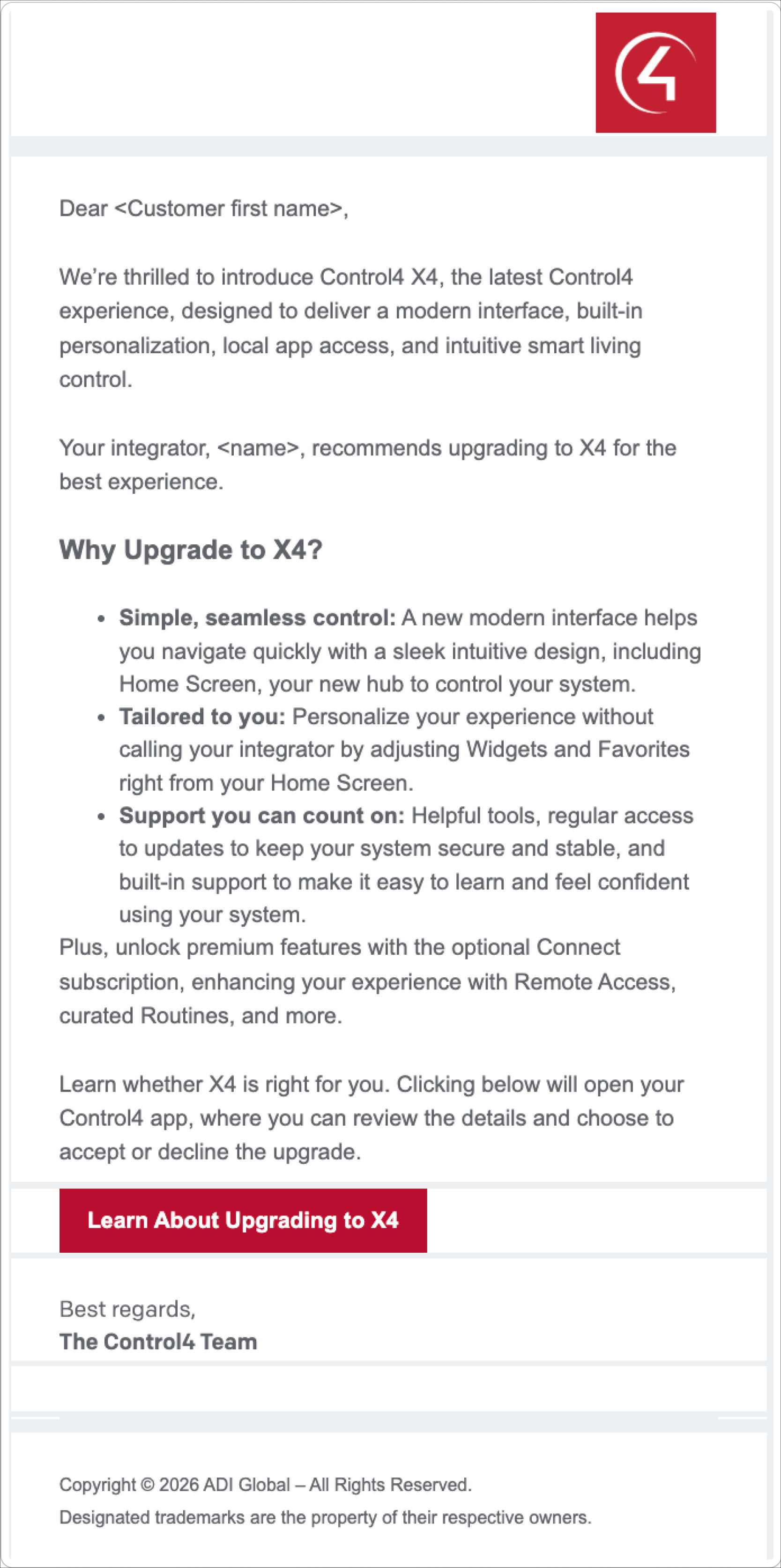
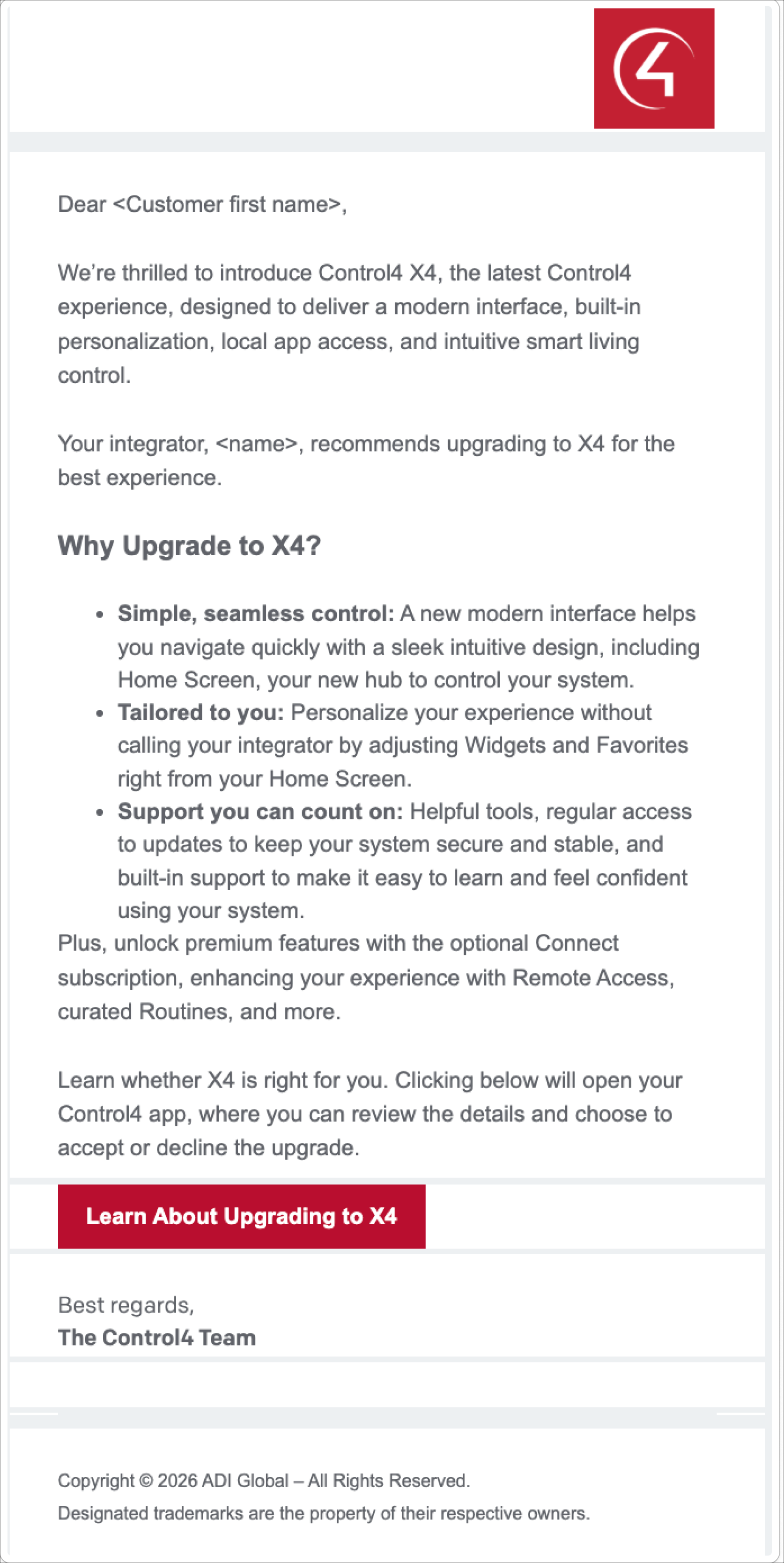
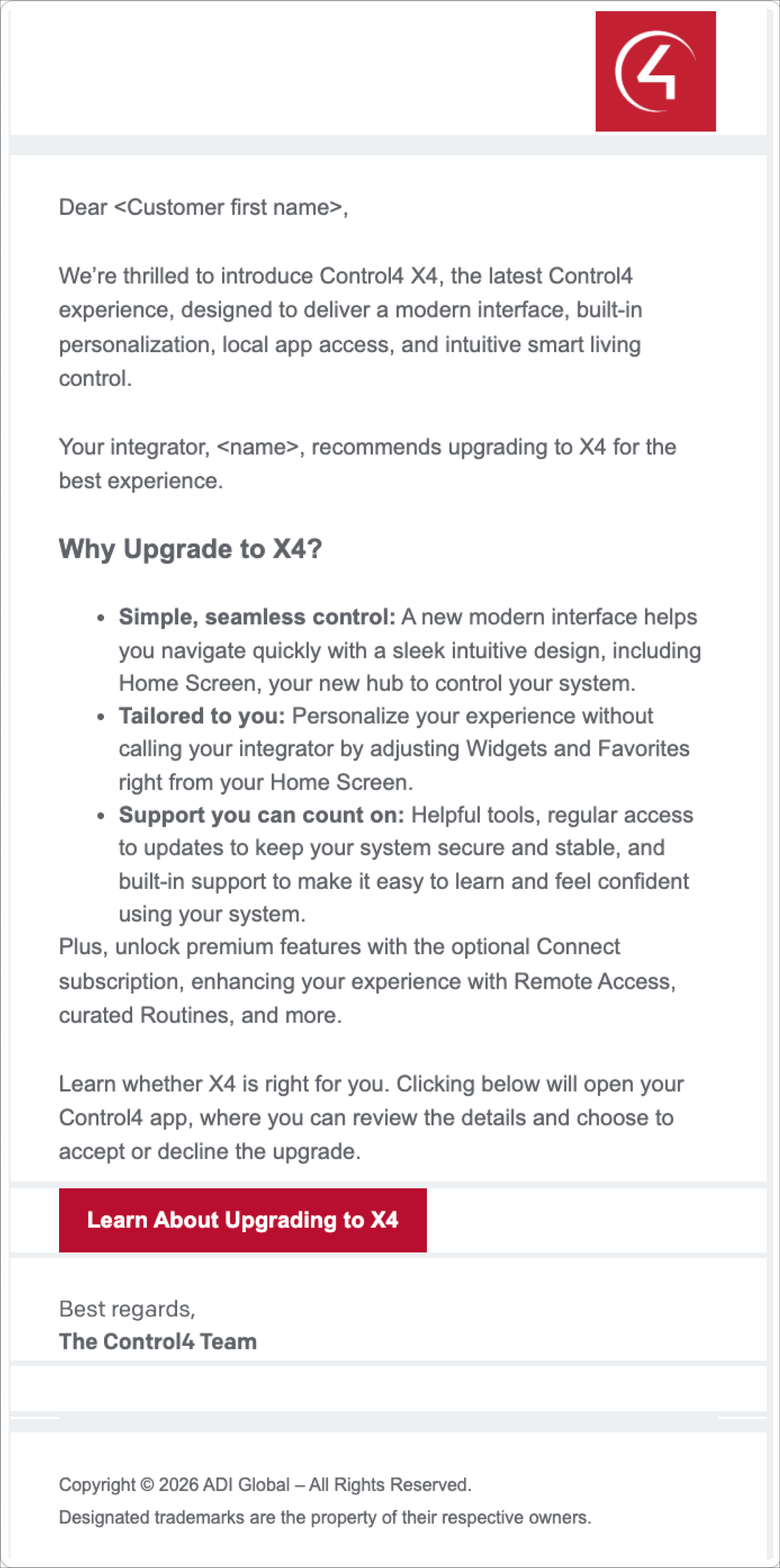
The customer receives an email outlining the benefits of X4 and how to accept the upgrade in their OS 3 mobile app.
-
You'll receive an email when the customer accepts or declines the invitation.

Note: If the customer's invitation was sent prior to June 24, 2026 you'll have to resend the invivation.
What if the customer declines?
The Invite link reappears in OvrC so you can try to invite them again later. A cautionary emblem appears beside the link to let you know the customer has declined in the past.
The customer receives an email to confirm they want to decline the upgrade. It also provides an option to revisit their upgrade decision.
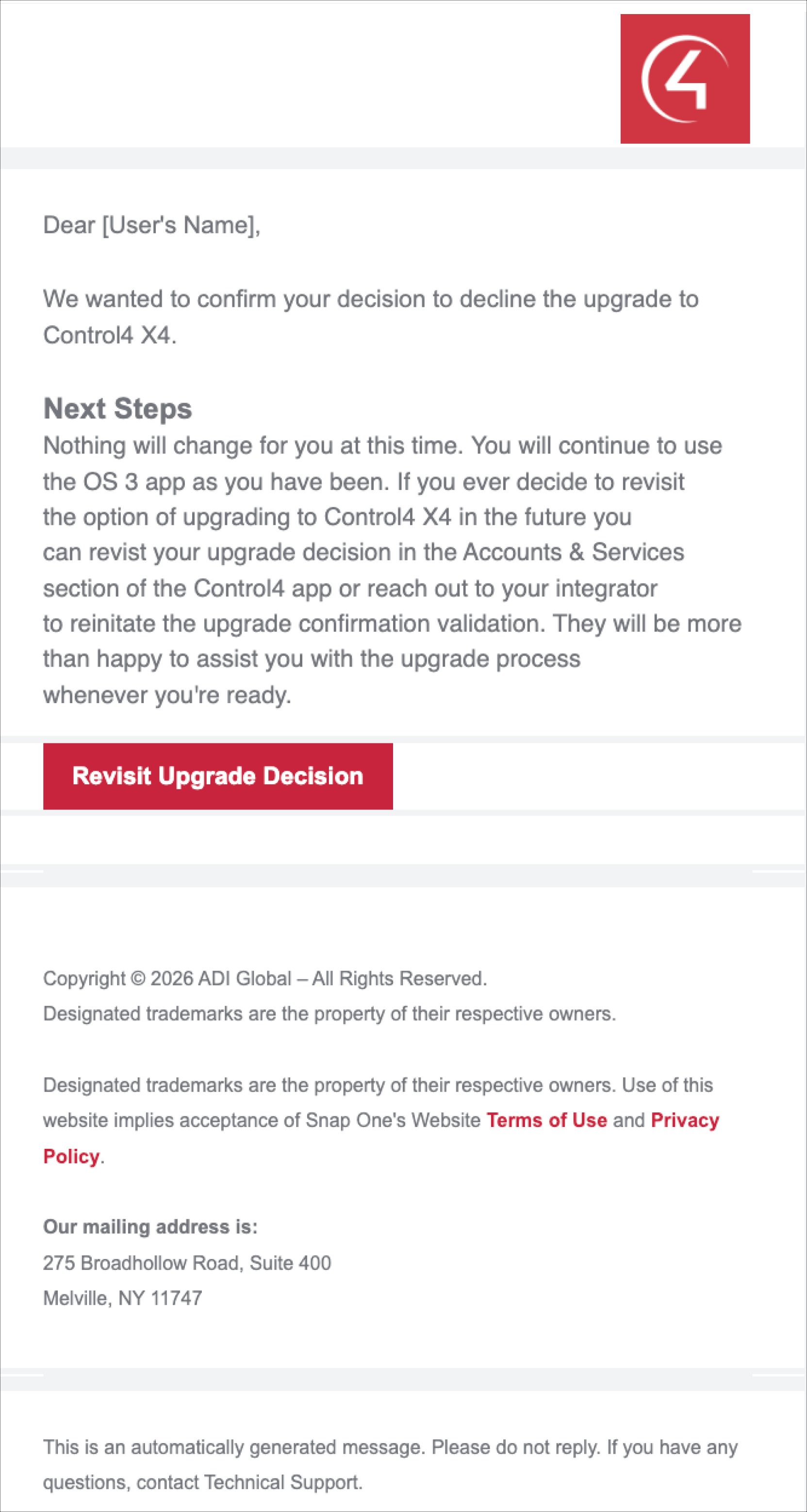
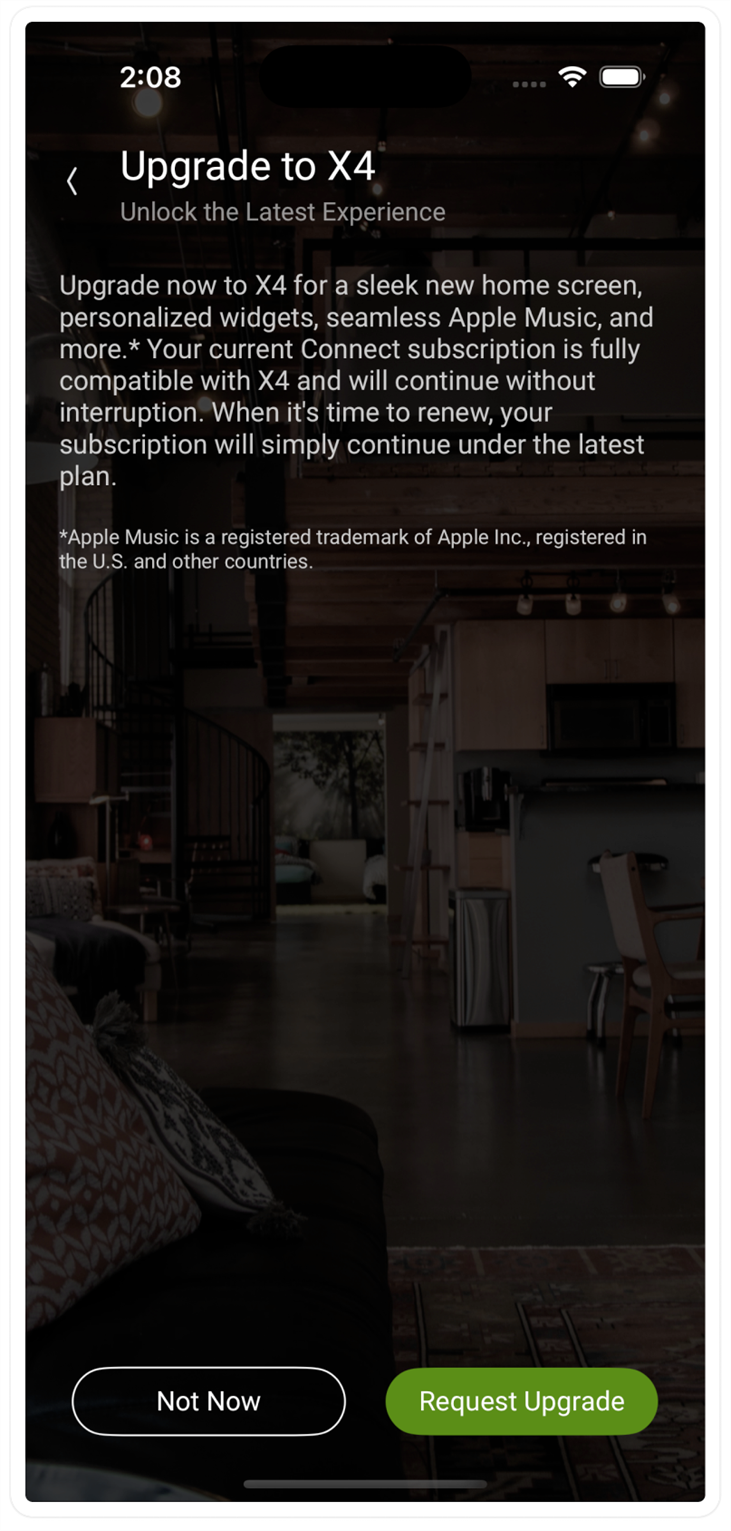
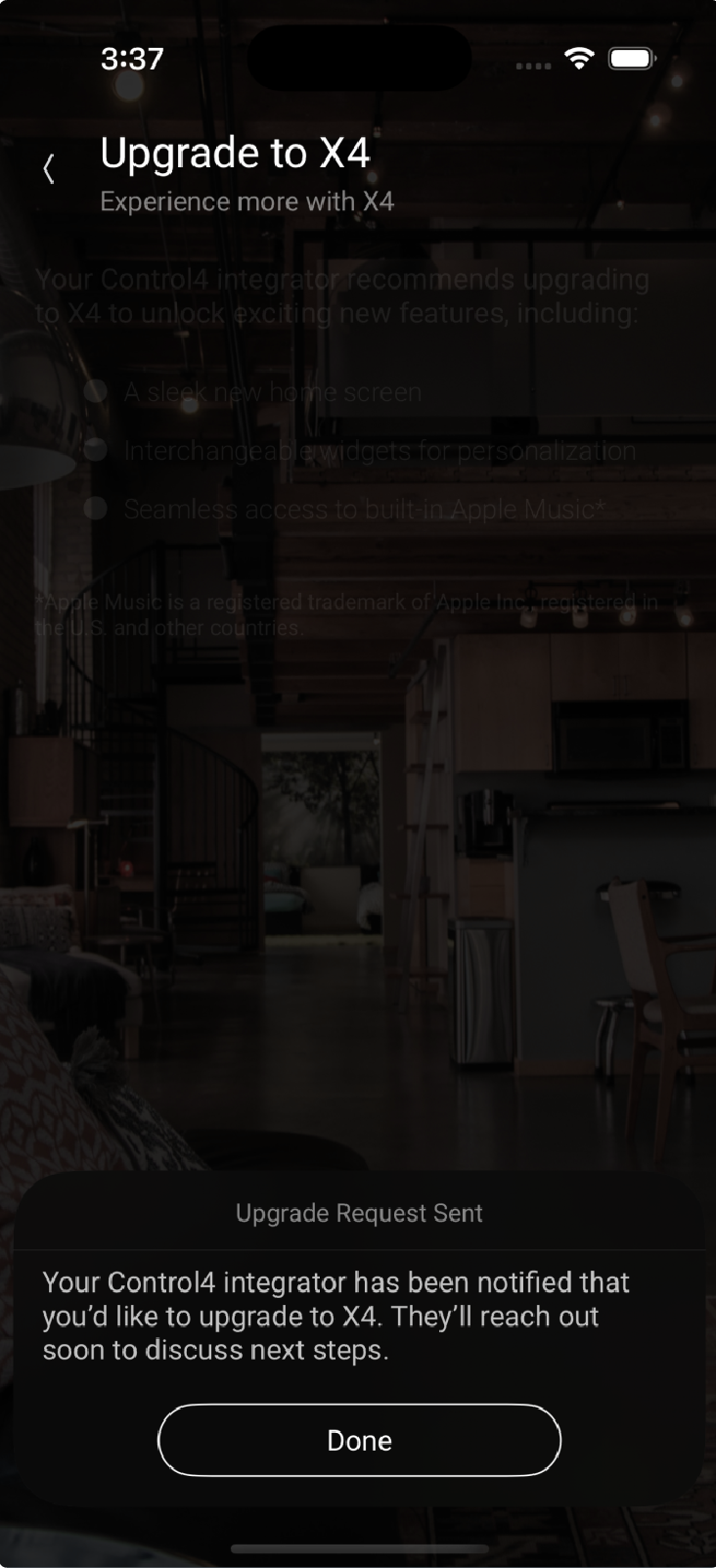
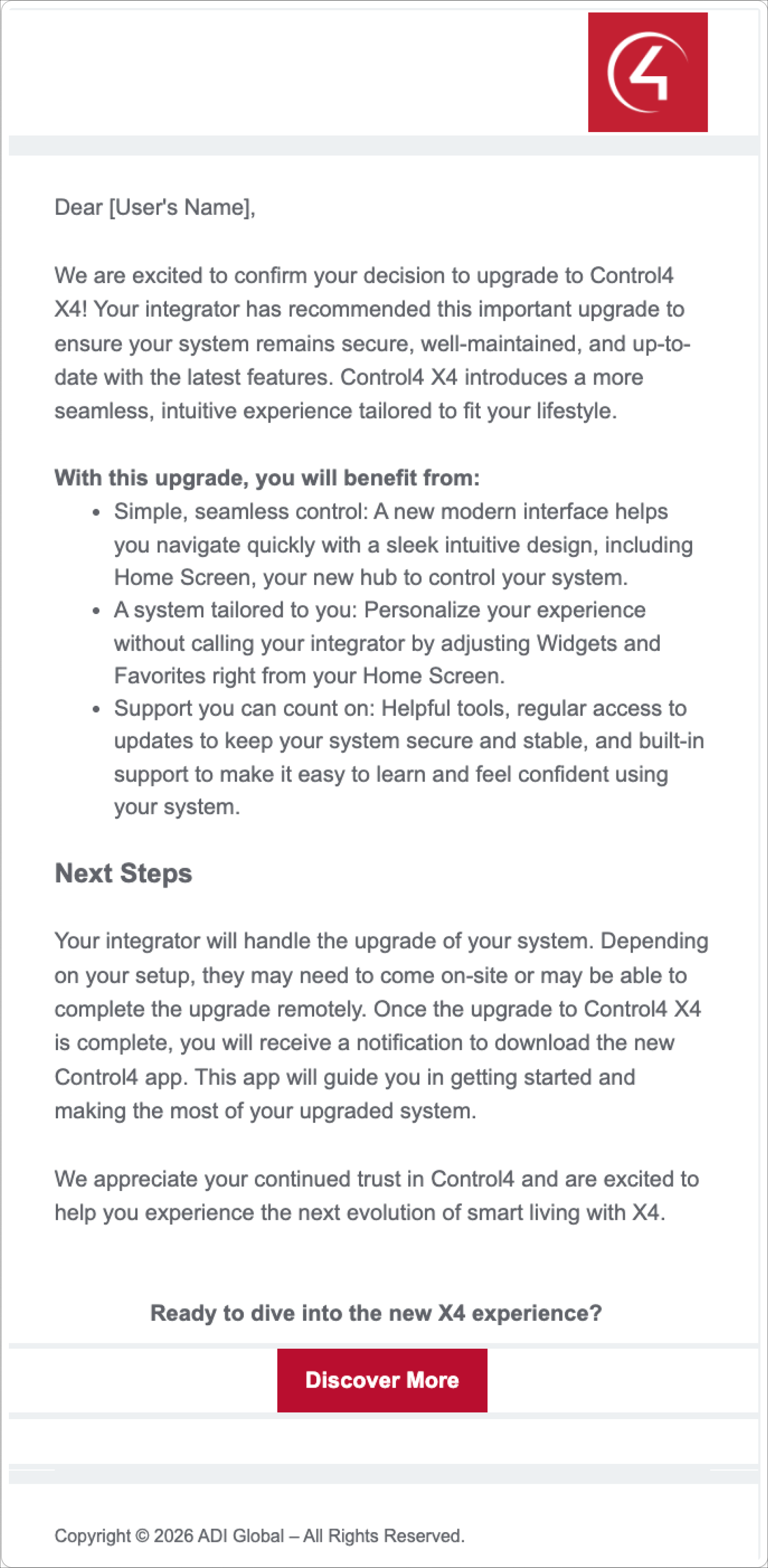
The customer's email and mobile app messages are specific to their current 4Sight or Connect subscription. Open this topic in the X4 + Connect resources to see what that messaging looks like.
The customer's email and mobile app messages are specific to their current 4Sight or Connect subscription. We outlined each scenario at the bottom of this document:
Upgrading the project to X4
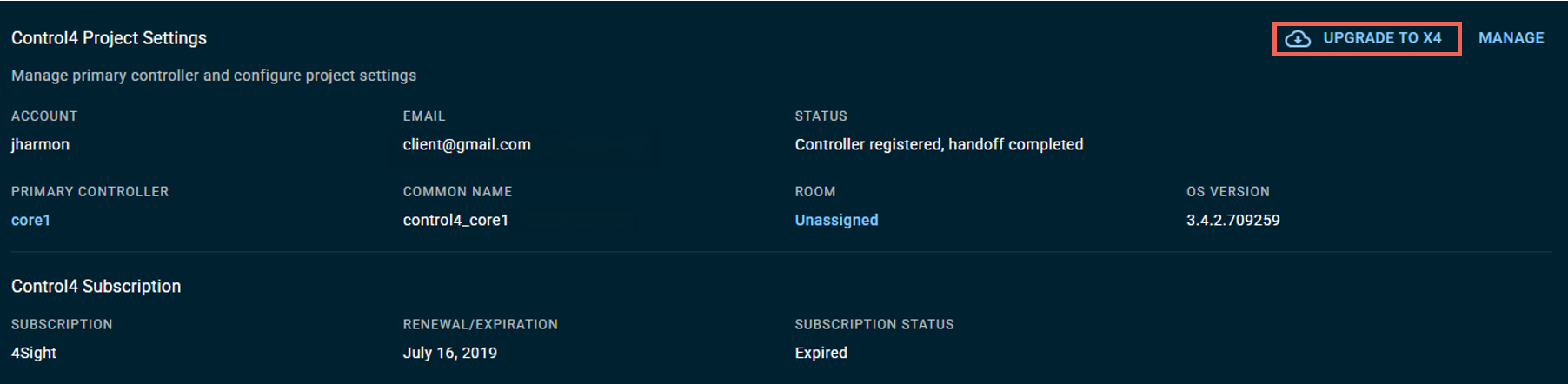
To upgrade the project in OvrC, click UPGRADE TO X4.
To upgrade the project with Composer Pro:
-
Go to File > Backup and secure your project with a quick save.
-
Update your drivers under Driver > Manage Drivers. Some updates might prompt a primary controller restart. Follow the on-screen instructions.
-
Refresh Navigators.
-
Go to File > Refresh Navigators to refresh your interface.
-
Verify all your drivers.
-
Ensure that all your drivers (including any third-party drivers) are functioning properly before proceeding.
-
Start the update and allow an hour to let it complete.
-
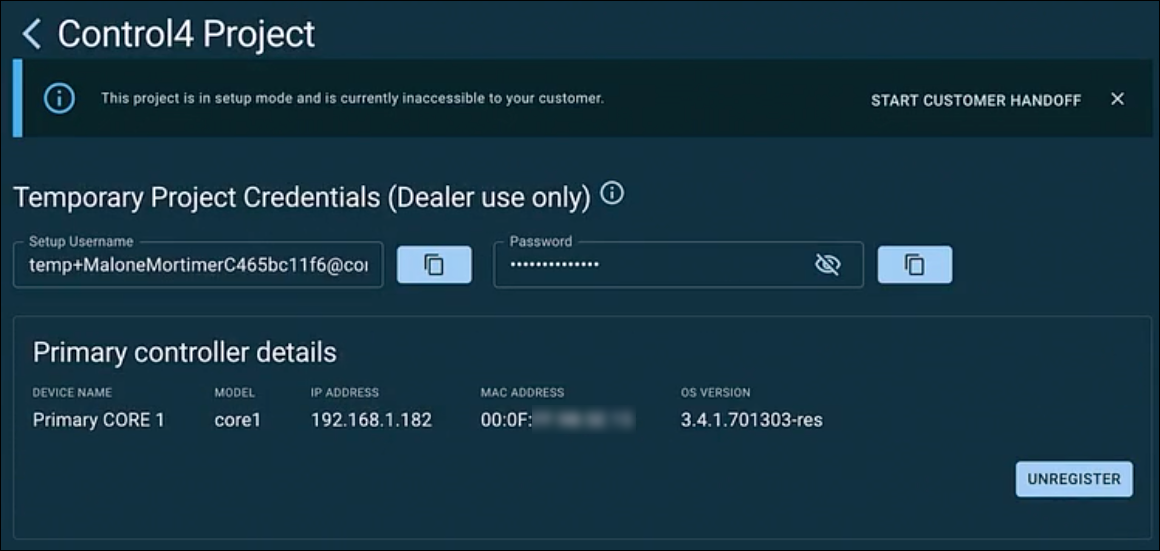
If this is a new system, use the Temporary Project Credentials to test the system. Click START CUSTOMER HANDOFF to send an email to the customer to download the X4 mobile app. These credentials refresh every seven days.
What can I test using these credentials?
You can test Control4-only features with temporary credentials. Notifications, intercom on mobile, remote access, voice, Apple HomeKit, and Routines cannot be tested.You can test Apple Music and AirPlay.
-
Have the customer download the X4 mobile app and go through the First Time User Experience.
Customer without a subscription upgrading to X4
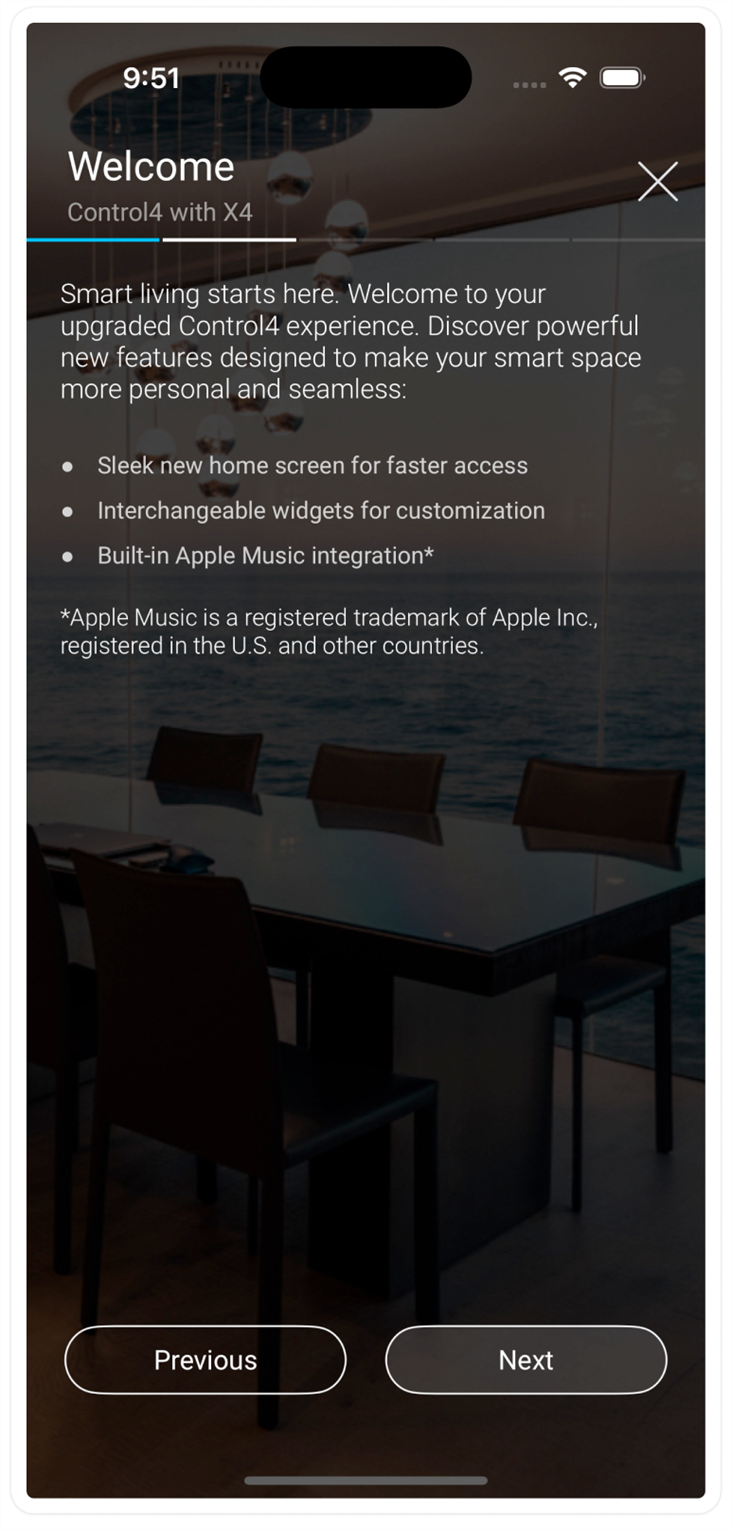
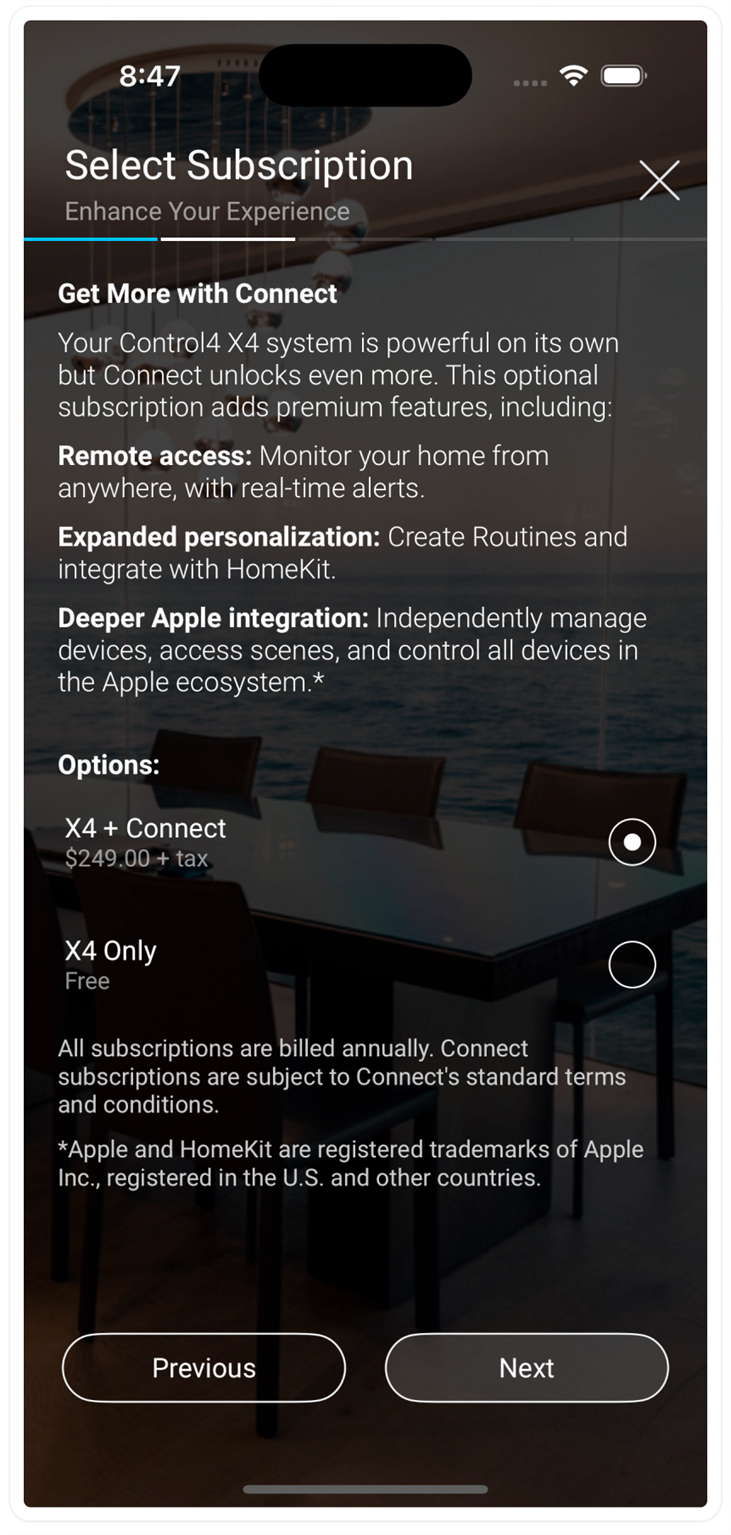
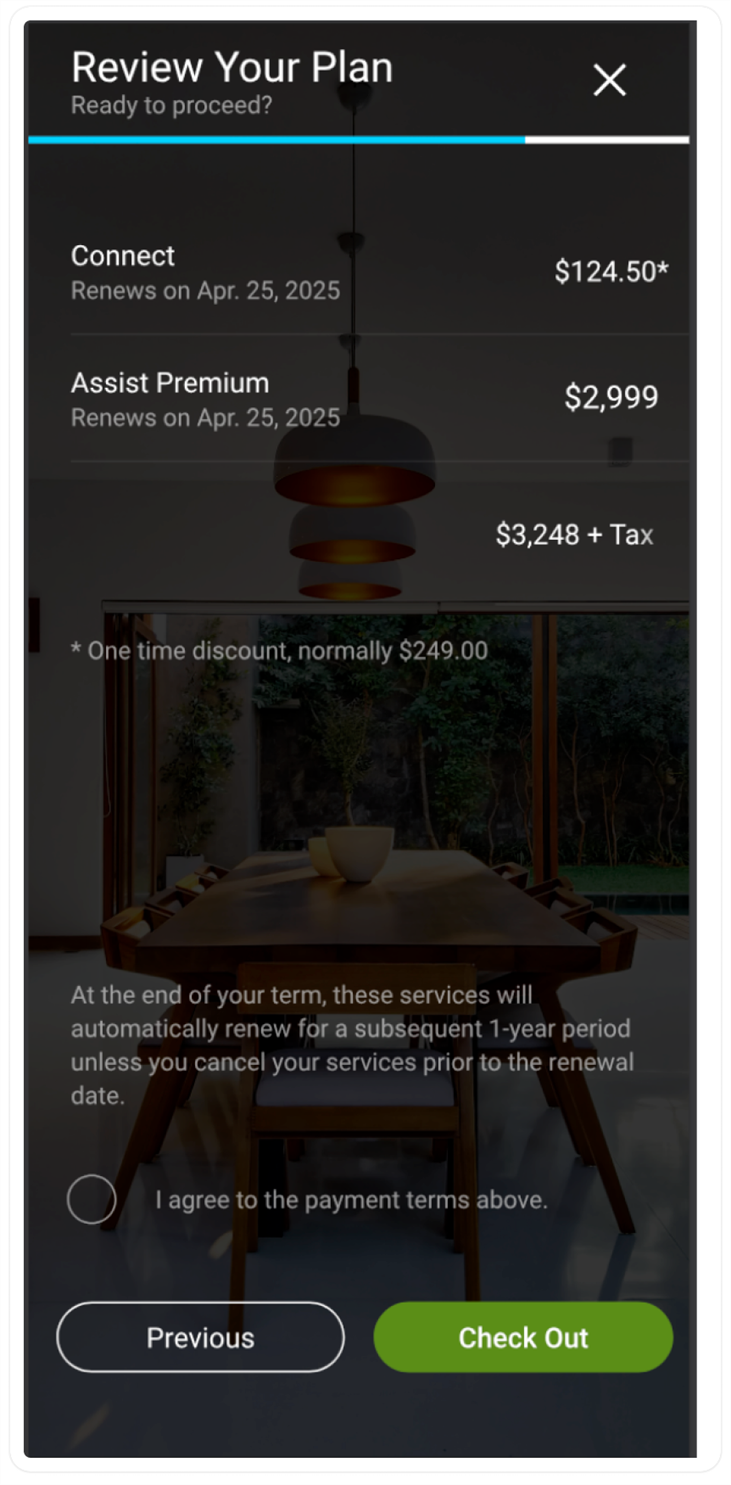
After they download the app and sign into their account, they'll go through the First Time User Experience. They'll be provided details about X4 with Connect and given the option to subscribe to Connect or use X4 only.
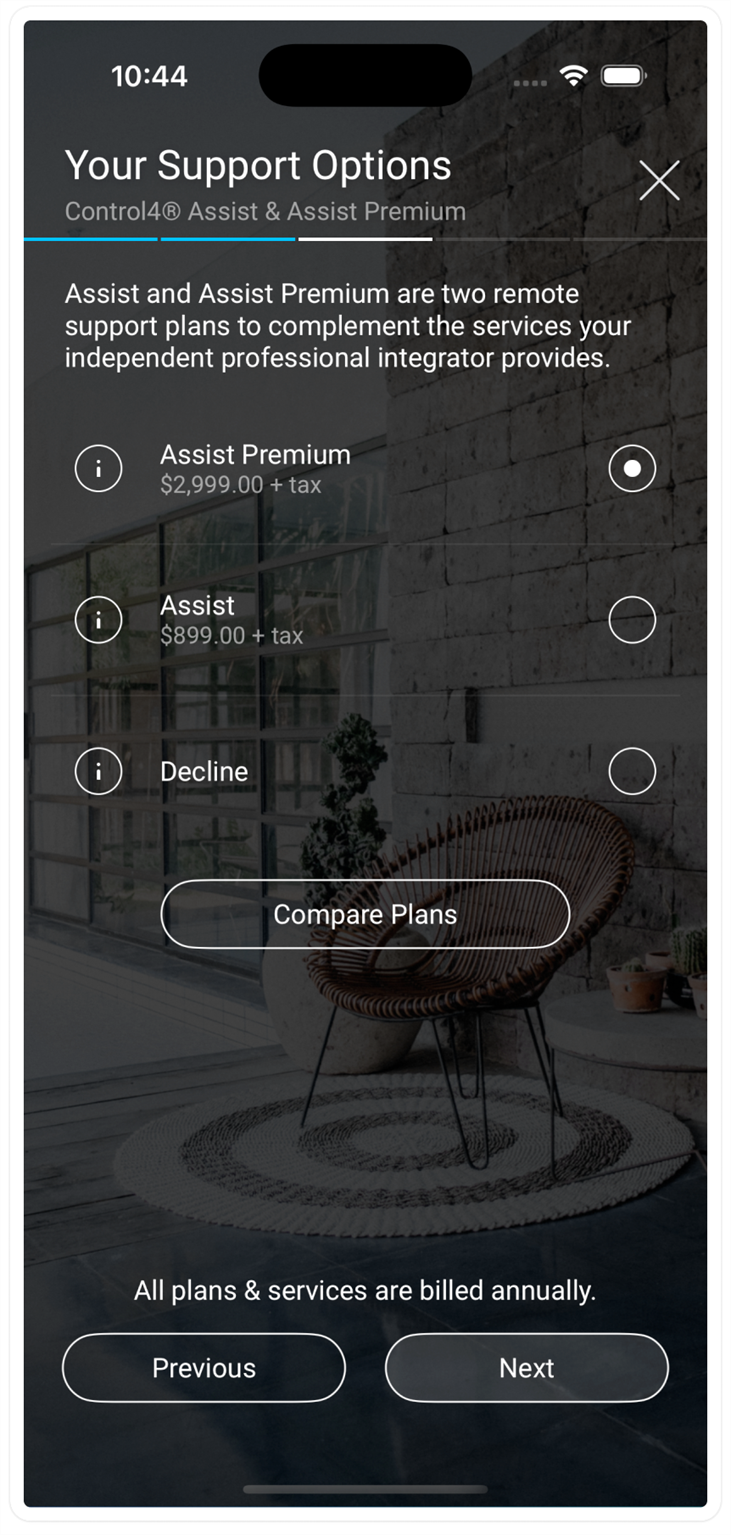
Note: Assist is only available if your dealership is Assist authorized.
Customer with a 4Sight subscription upgrading to X4
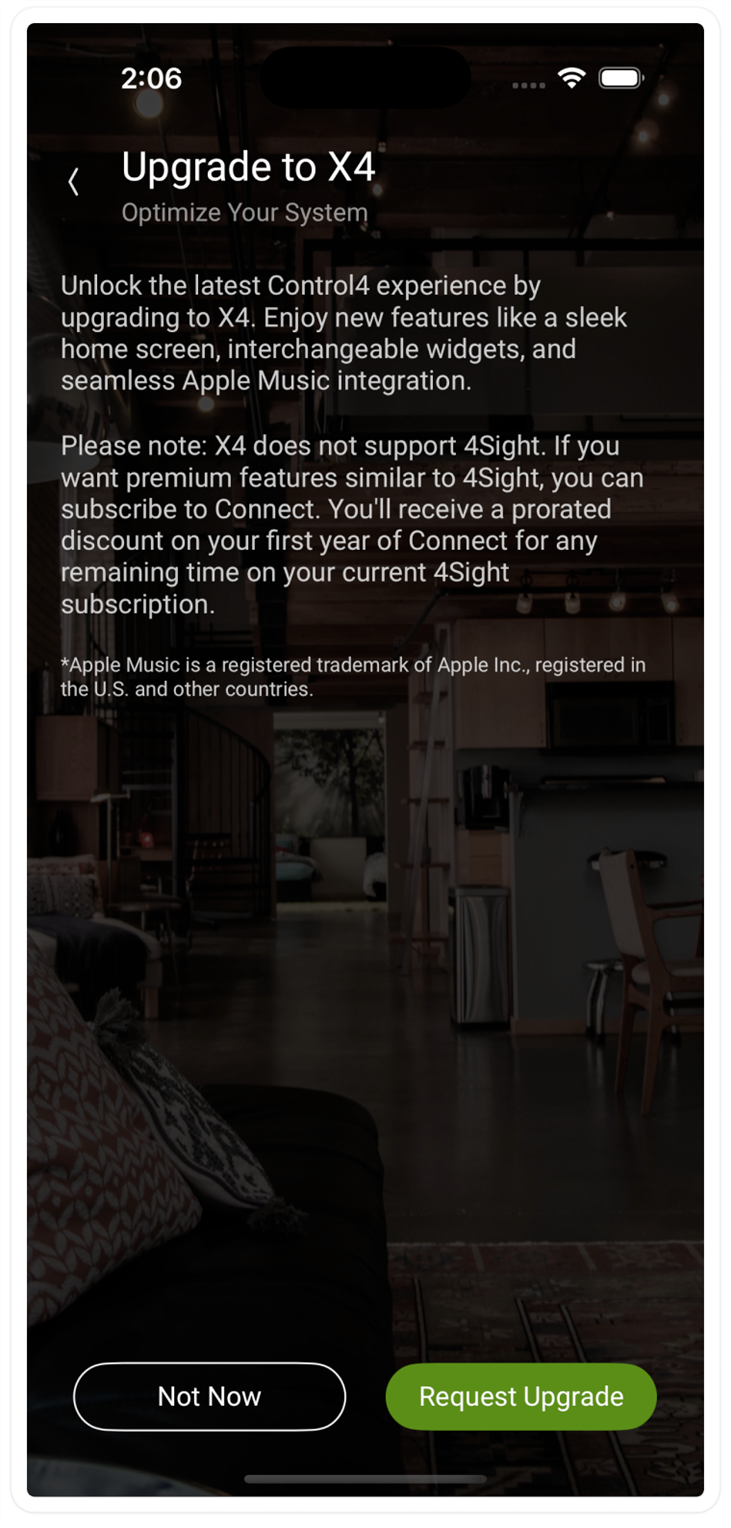
The Control4 mobile app informs the customer that 4Sight is not supported by X4. If they choose to upgrade, they'll receive a pro-rated discount on Control4 Connect based on the remaining time of their 4Sight subscription.
The customer can accept or deny the upgrade after reading this message.
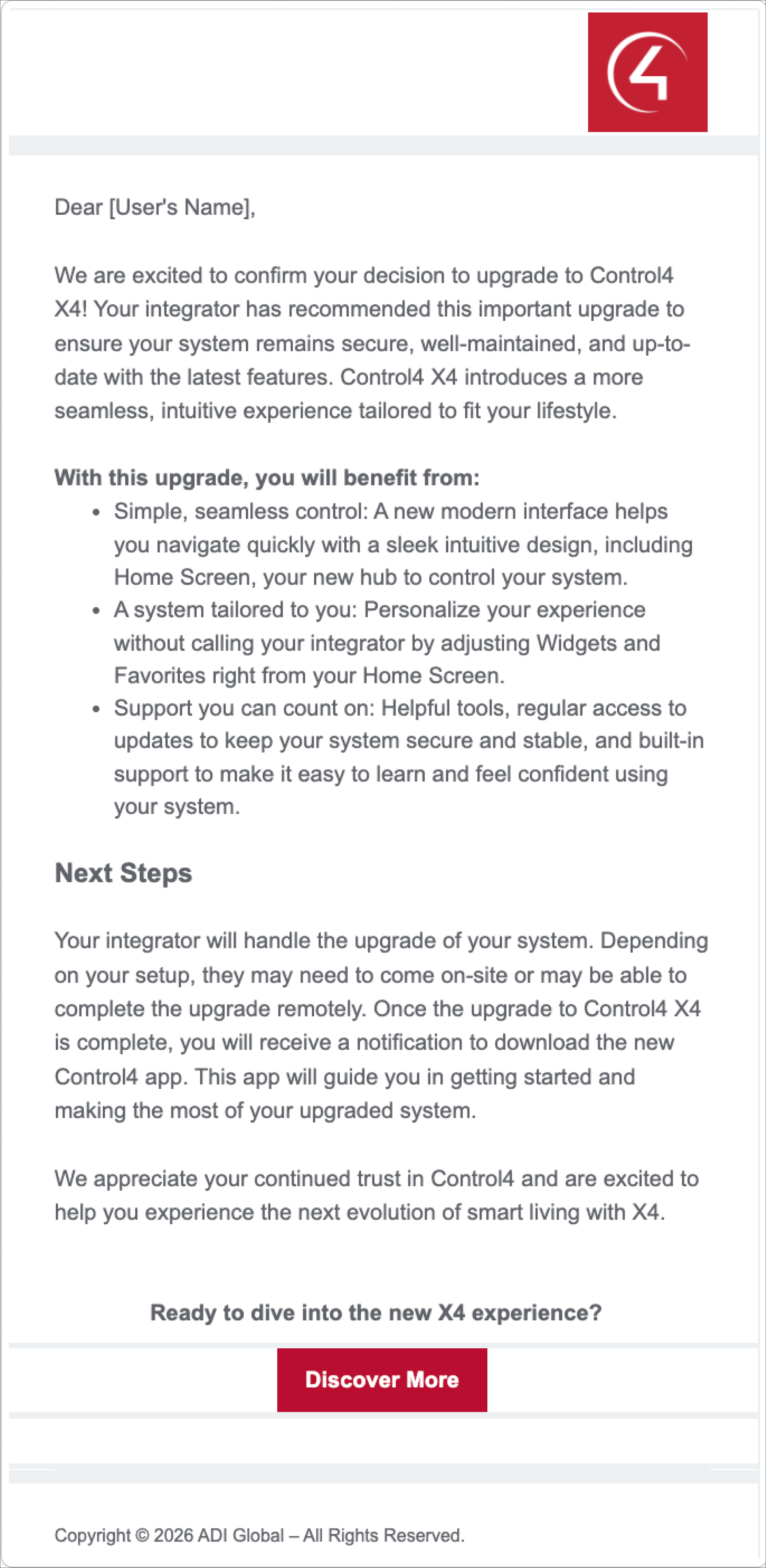
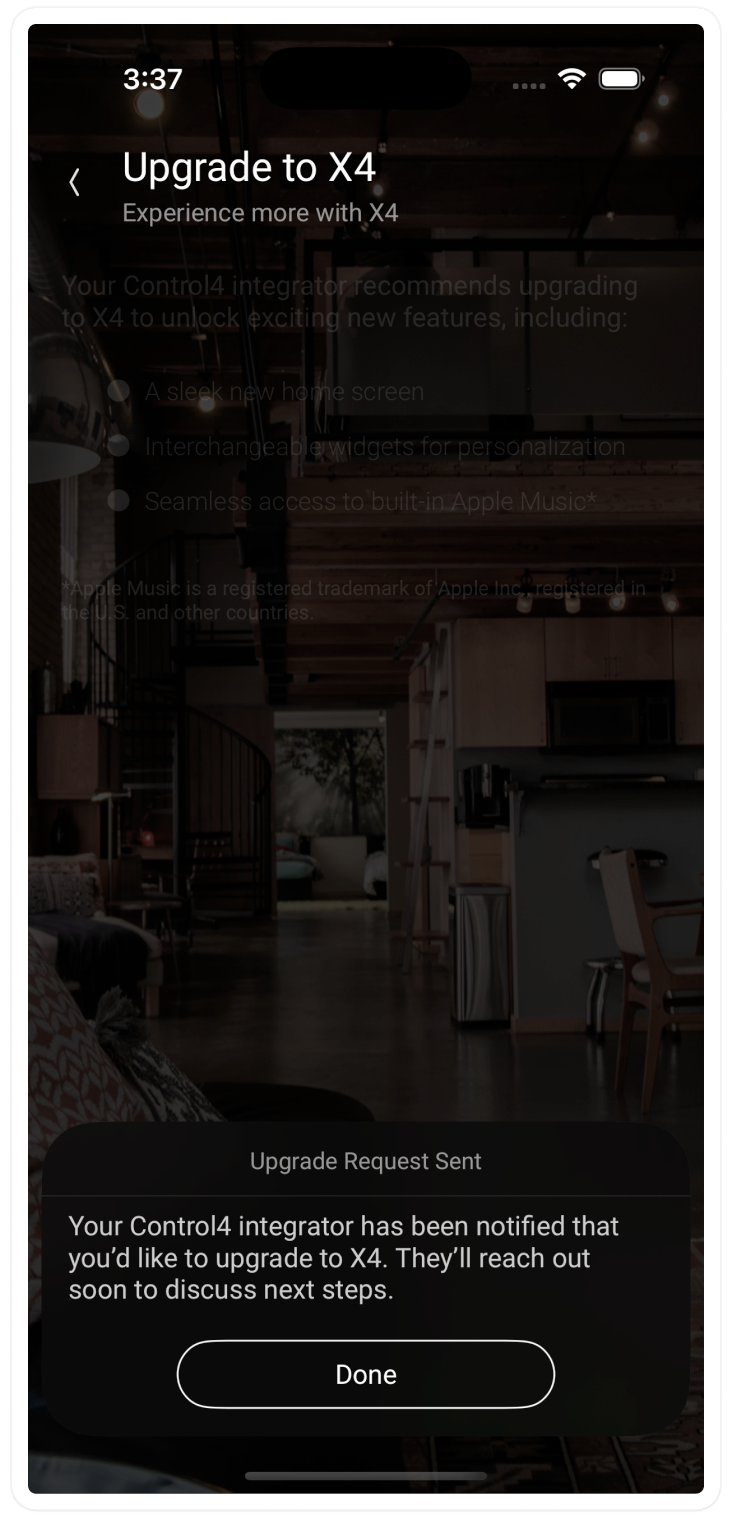
If they accept, the mobile app lets them know their Dealer of Record has been contacted to upgrade the system. The customer receives a follow up email explaining that their dealer has to perform the upgrade, and it may require a site visit.
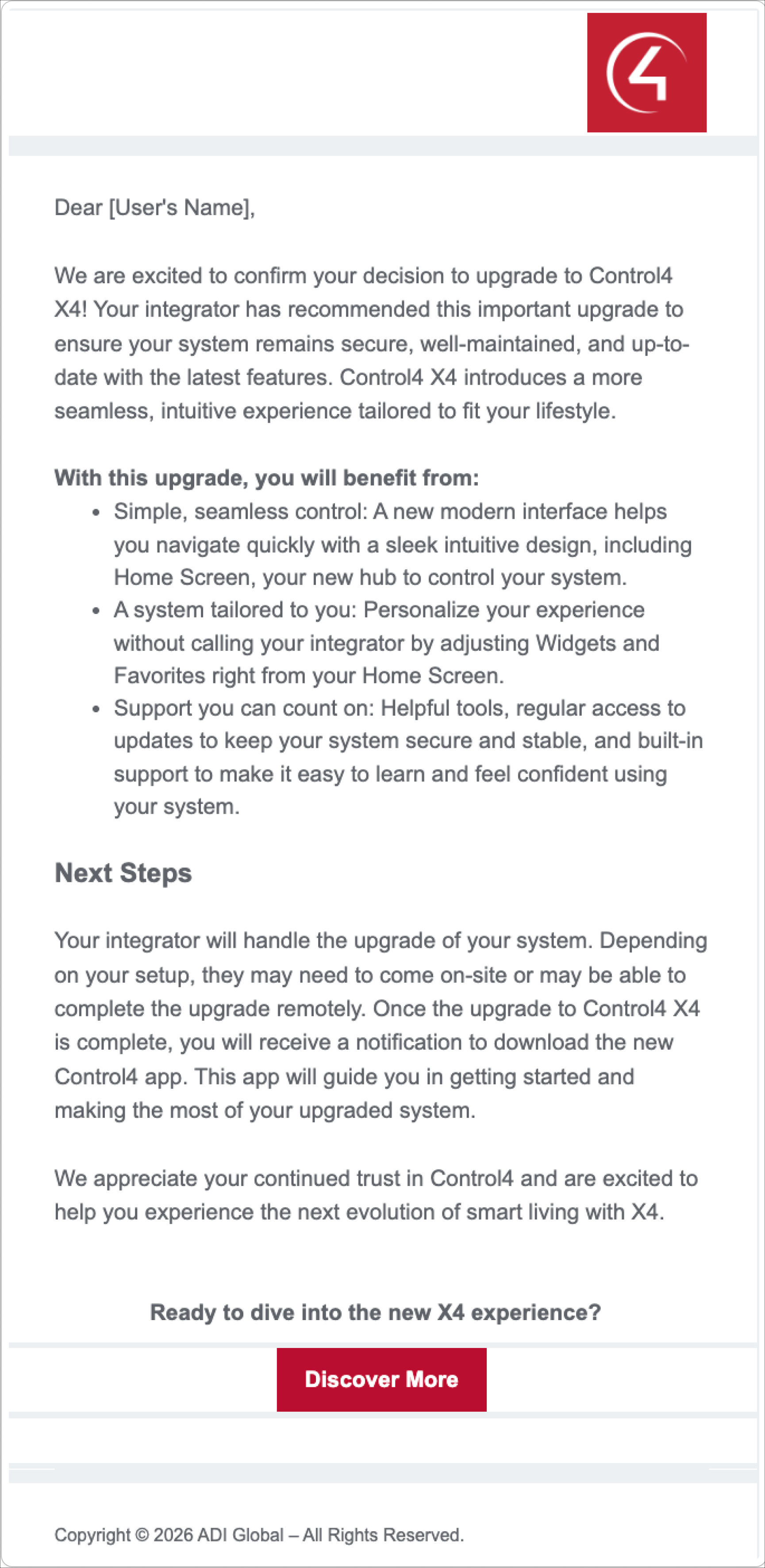
After upgrading the system to X4 and handing it off, the customer receives a confirmation email with a link to download the X4 mobile app.
Customer with a Connect subscription upgrading to X4
They customer is informed that their Connect subscription is compatible with X4 and they'll keep the same renewal period.
If they accept the upgrade, the mobile app lets them know their Dealer of Record has been contacted to upgrade the system. The customer receives a follow up email explaining that their dealer has to perform the upgrade, and it may require a site visit.
After upgrading the system to X4 and handing it off, the customer receives a confirmation email with a link to download the X4 mobile app.