Creating a MultiView Macro
This step is no longer required for firmware version 4.5.3, unless you want to keep an input at 4k60 or higher. The MoIP system cannot share MultiView streams across multiple displays if the stream is above 4k30.
-
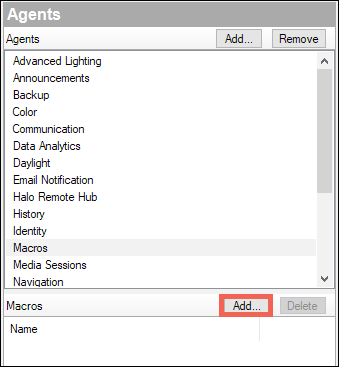
Go to the Agents view and select Macros. If you haven’t added the Macro’s agent, you may have to click the Add button at the top of the list.
-
In the Macros pane, click Add.
-
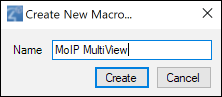
Give the Macro a meaningful name, like “MoIP MultiView,” then click Create.
-
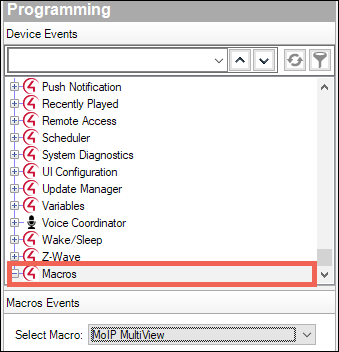
Go to the Programming view, and in the Device Events window scroll down to select Macros. Use the drop-down to select your MultiView Macro.
-
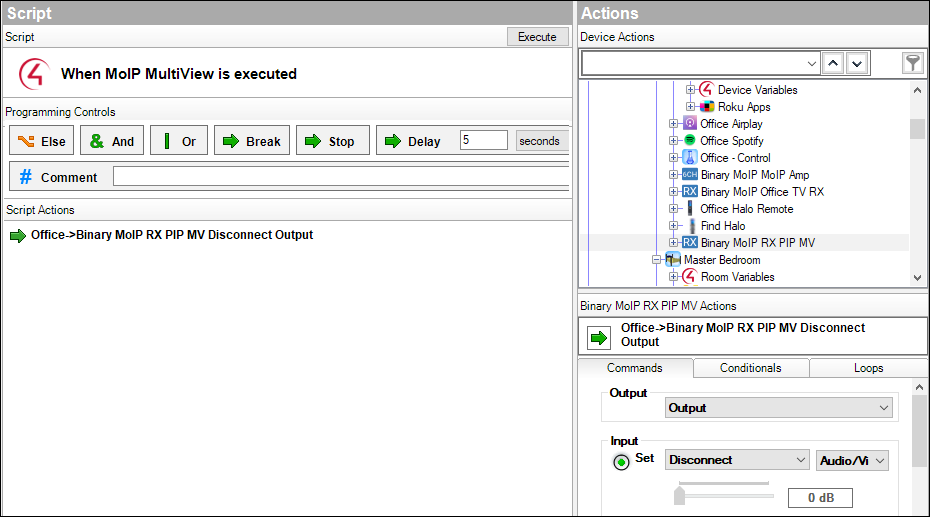
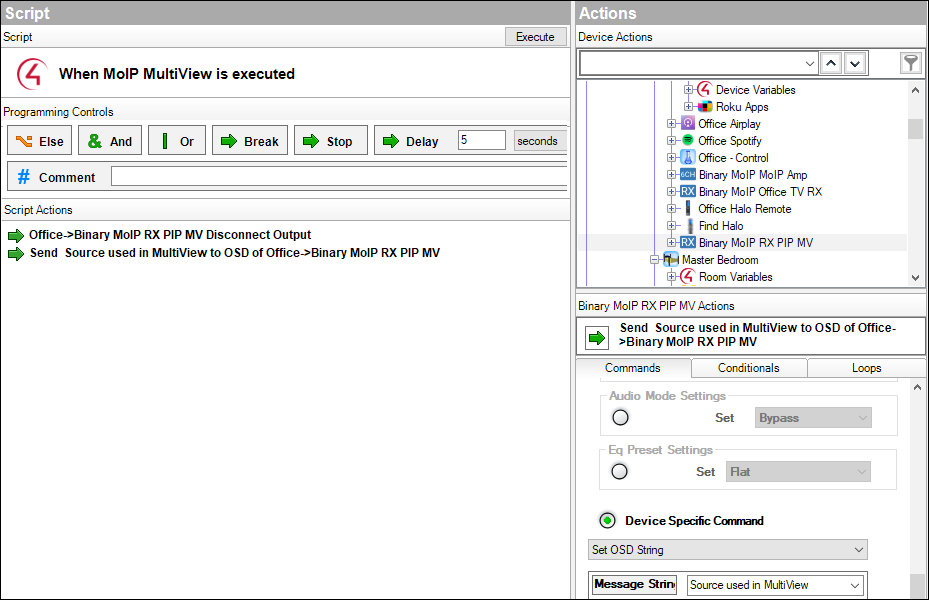
In Device Actions, select one of the B-960 MoIP receivers. Set the Output to Output and Input to Disconnect, Audio/Video. Then click the action to add it to the script.
-
Back in the receiver’s actions, scroll down to Device Specific Command and select Set OSD String.
-
For the Message String, type something like “Source used in MultiView" and click to add the action to the script.
-
Repeat steps 5, 6 and 7 for each B-960 receiver in the project. This ensures the transmitter streams are available for the MultiView session.
-
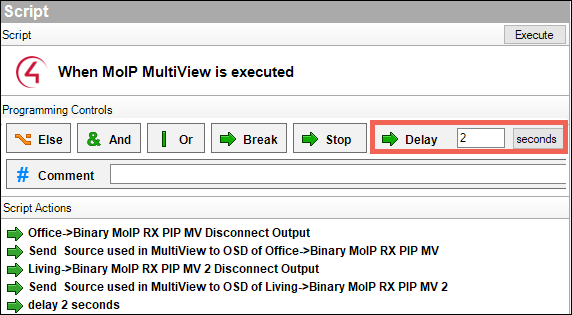
Add a 2 second Delay.
-
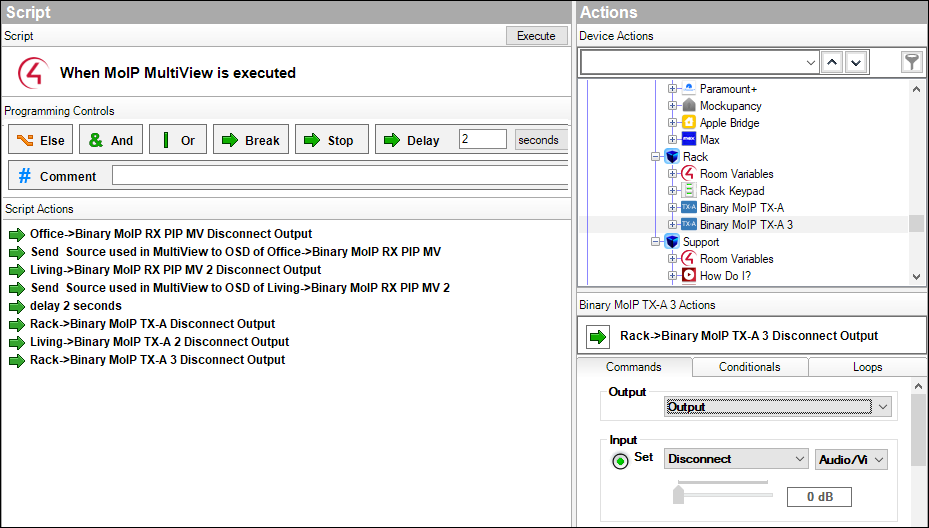
Select one of the B-960 MoIP Transmitters to stream to the MultiView preset. Set the Output to Output and the Input to Disconnect. Then add the action to the script.
Do this for each of the B-960 transmitters and transceivers in the project.
-
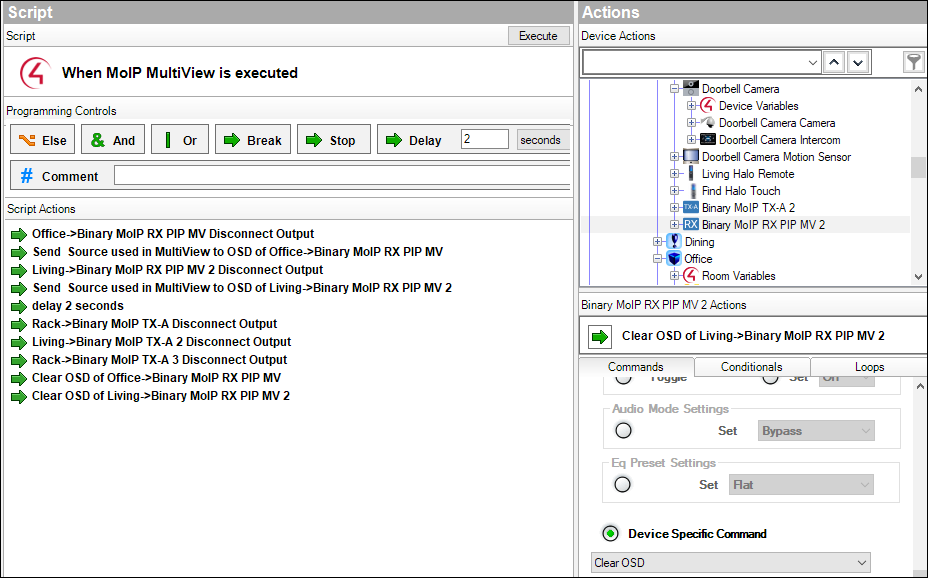
Go back to each of the receivers to add a Device Specific Command to Clear OSD.
-
Add the Macro to the top of your MV Preset Programming.