OvrC Wi-Fi Management: Fine-tuning the wireless radios
Optimize the network by adjusting the wireless radios in each access point. Settings include the Wireless Channel, Wireless Mode, Bandwidth, and Transmit Power. Read about Wi-Fi Channel Optimization in our Wi-Fi Best Practices.
To adjust the radios:
-
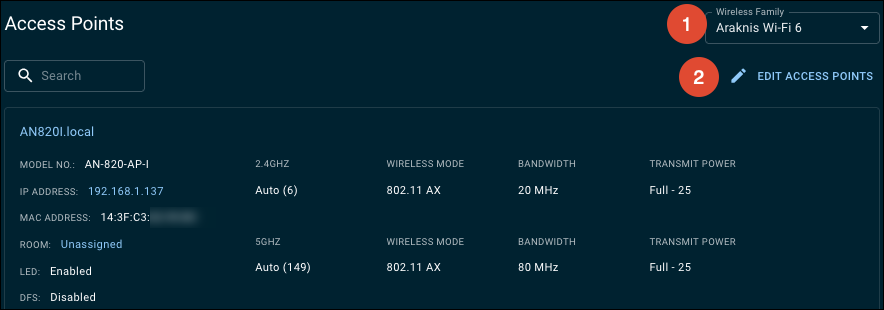
If you have multiple AP series on-site, select the Wireless Family you want to adjust.
-
Click Edit Access Points.
-
Run a Site Survey before adjusting the wireless radios. Each AP has the ability to run a survey from it's location.
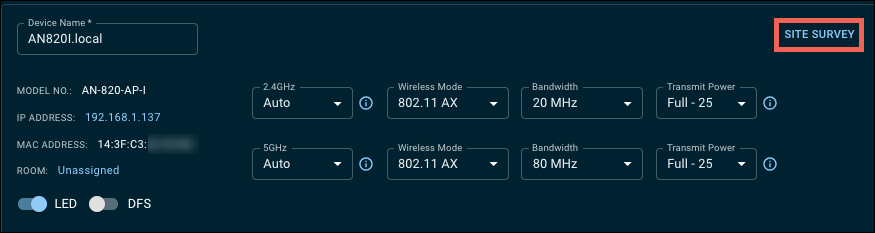
Note: Site Survey is only available on Araknis x20 Series access points. Wi-Fi 5 APs have a site survey tool in their local UI.
-
Allow the new site survey window to finish the scan. The BSSID field typically displays the MAC address of the radio being scanned. Click the table headers to sort the information.

-
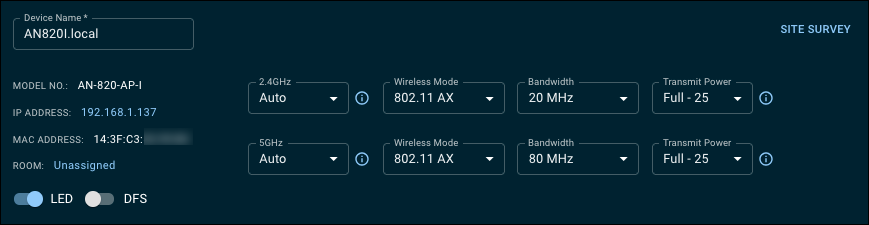
Use the 2.4 and 5GHz selections to view the survey for each radio. Use the dropdowns to adjust the settings for each.
-
After making all the adjustments for the AP, click Save to close the site survey window.
-
You can continue adjusting the rest of the APs from the Networks & Access Points tab using the dropdowns. If you’re configuring a Wi-Fi 6 AP, you can also enable or disable the DFS channels and the AP’s LED.
-
Click Apply Changes to push the changes to the APs.
Learn more about OvrC Wi-Fi Management features: