Settings
Use the Settings page to quickly invite users to the site or revoke their access to OvrC Connect and Luma View. You can also request access to the customer's surveillance system.
Note: When you invite a user to Luma View you lose video access to the Luma system. You can still monitor the hardware. This video decoupling provides your customers with privacy and protects you from legal exposure.
Manage Access
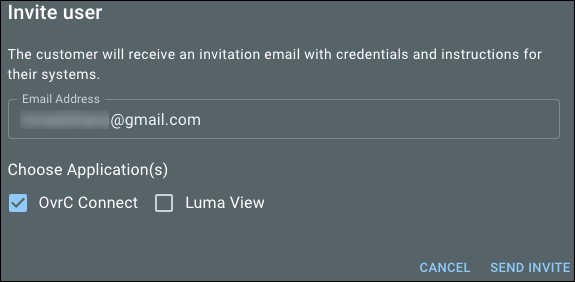
Click the Invite User button to invite someone to OvrC Connect, Luma View, or both.
The user table shows emails, which app they have access to, and whether they've accepted the invite or not.
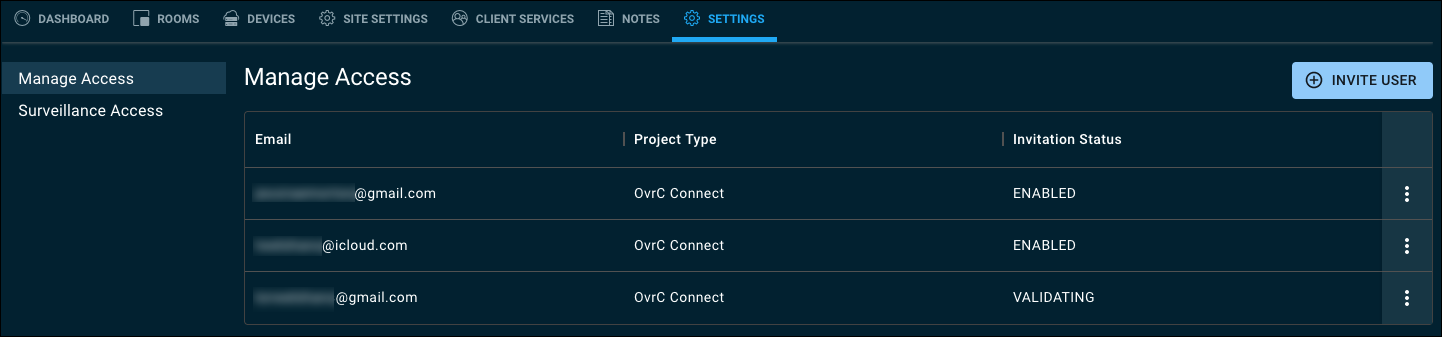
Click the overflow icon in the user table to delete a user.

Surveillance Access
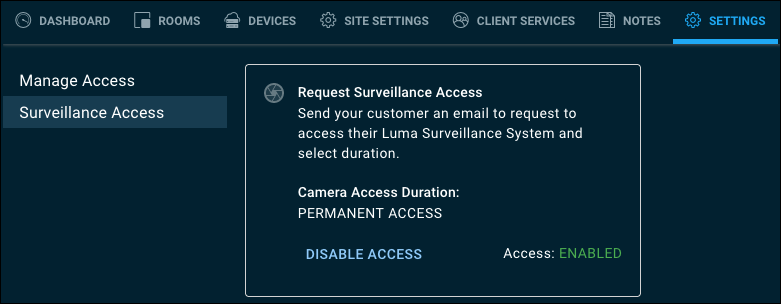
Surveillance Access allows you to view video footage of the customer's Luma surveillance system for a limited amount of time. To do so, click Request Surveillance Access, choose the duration of time, then click Send Request. This sends the customer an email that includes a link for them to grant you access.
Read the Luma topic Luma x20 Quick Start - Using OvrC for more information.